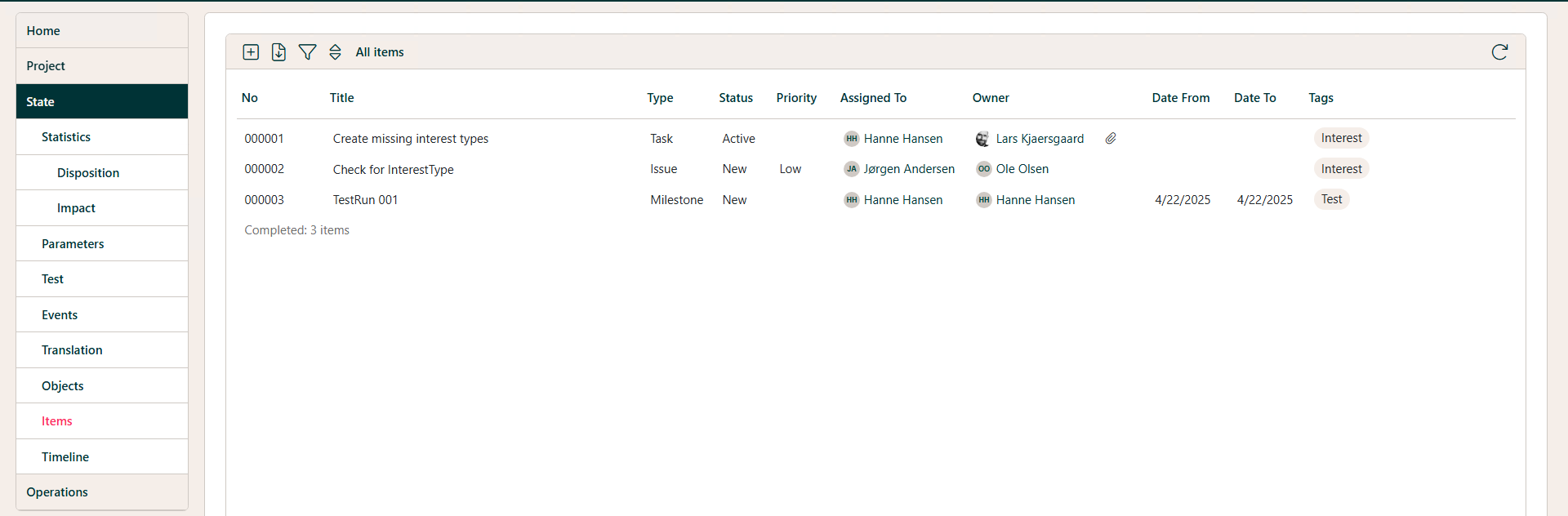
Item Manager Configuration
For organizations that are using Hopp on one programme with a number of projects or a Supplier that has a set of standard operating procedures it makes sense to set up the Item Manager at the Portal level so that all the Projects use a standard set of Item Types all configured in the same way.
But if a single implementation of Hopp is being used to manage projects from a number of organizations that wish to use their own procedures or terminology then the settings can be managed at the individual Project level. In this way the differences between organizations can be accommodated but they can all use the common environment without having to install Hopp multiple times.
Changing Settings from Portal to Project Level
When a Project is set up it inherits it's Item Manager settings from the Portal such that any change that is made in the Portal settings will be reflected in the Project. If, as an Administrator, you wish to have different settings for a single Project then it is possible to copy the Portal settings to the Project such that changes can be made at that level without affecting any of the other Projects. Select Configuration in the bottom left hand pane.
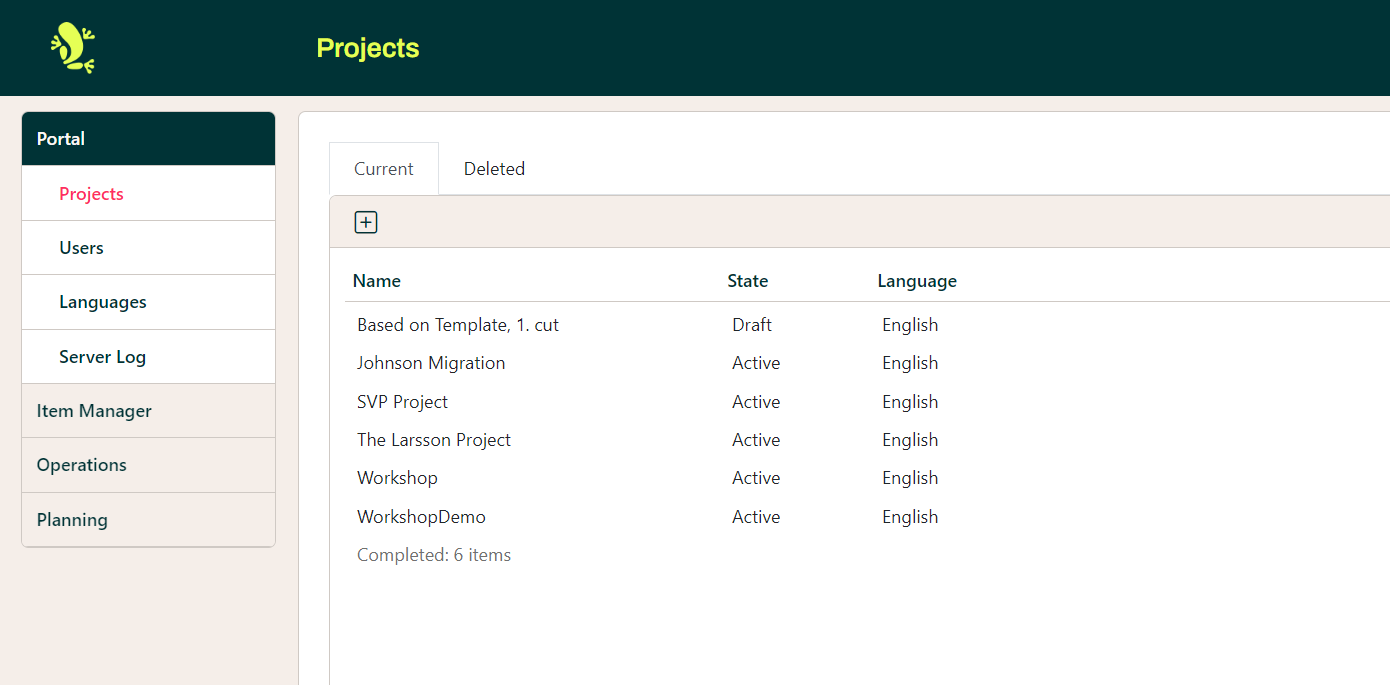
Select Projects in the Menu list to see the list of projects.
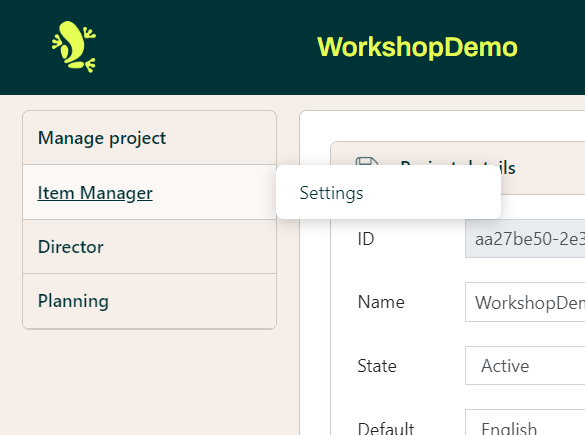
Select the Project you wish to update and then select Settings from the Menu
You can now select the Manage at Project level option and the Portal settings will be copied to your Project.
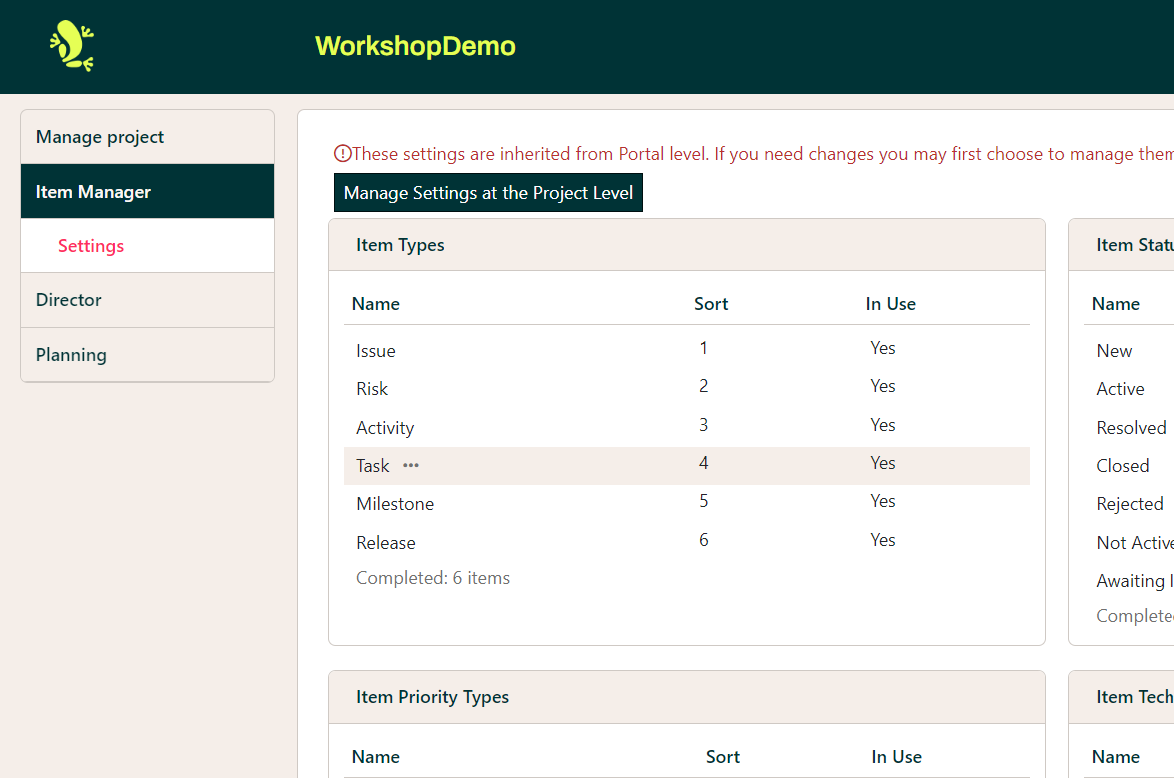
Once done you can configure the Settings as you wish for this particular Project.
Copying Settings and Items from another Project
If you have a number of Projects in a Programme to which you wish to apply the same configuration so that they can all be managed using the same procedures and standards you can copy the Settings from one Project to another. If you have a standard set of Items you wish to use for all the Projects these can be copied as well.
Follow the instructions for changing the Settings from Portal to Project level and select the Copy settings from another Project option instead. This will display a dialogue which allows you to select the Project from which to copy.
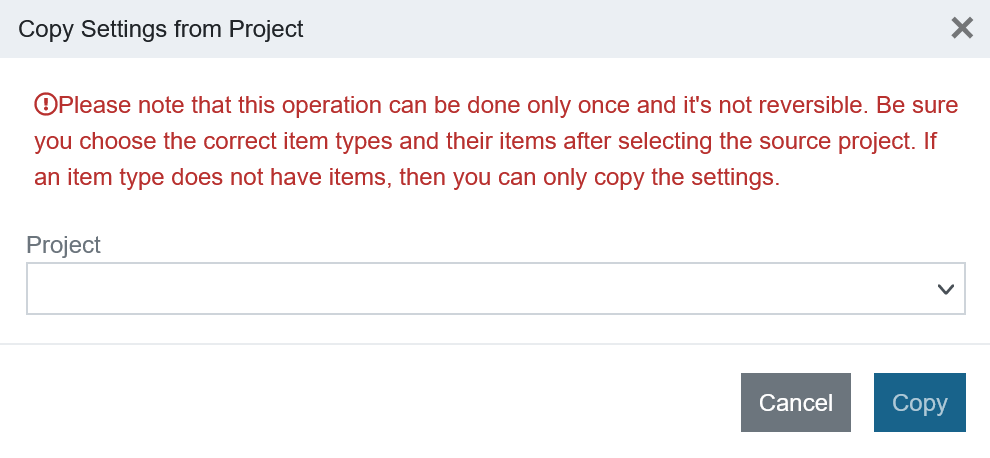
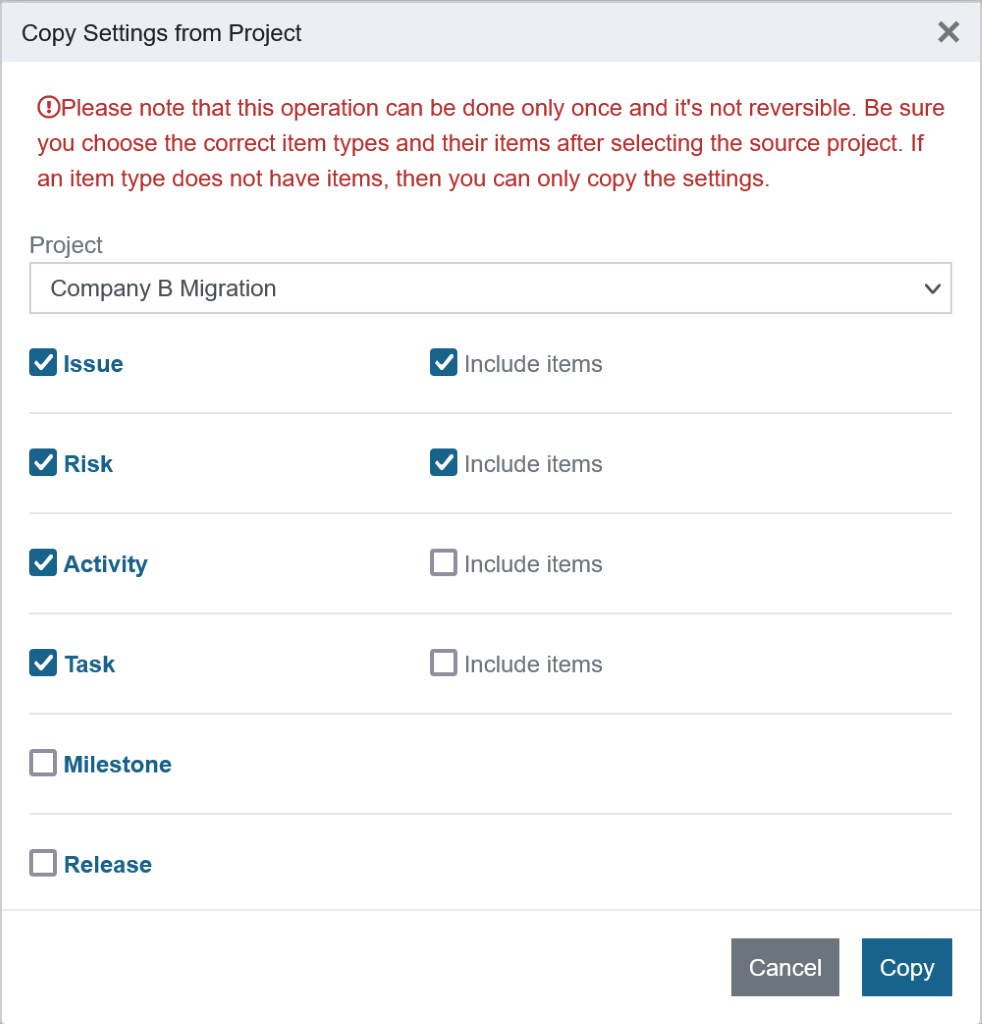
All the Projects available to copy will be included in the drop down and once a Project is selected another dialogue will appear allowing you to decide which Item Types and Items you wish to copy.
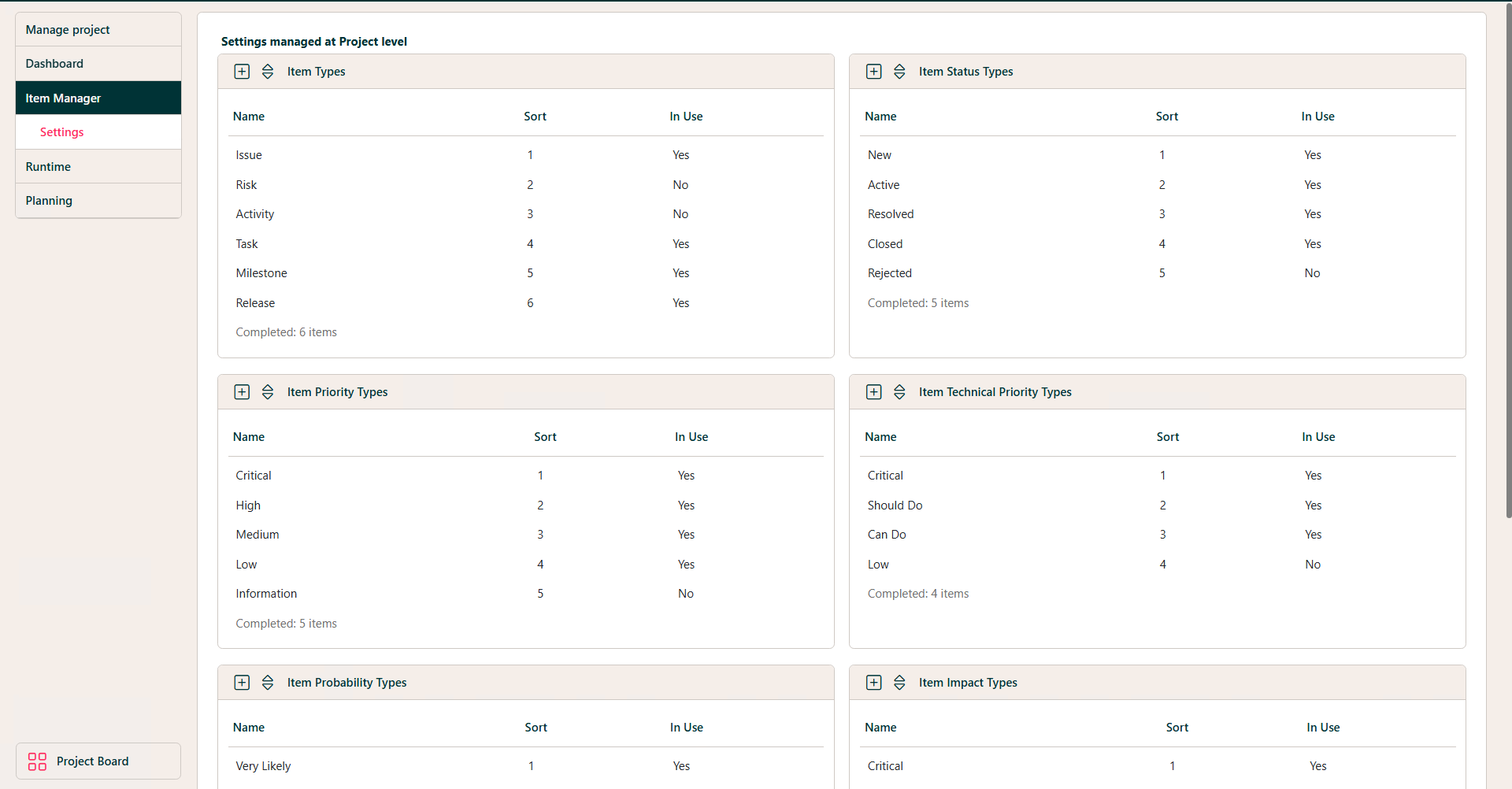
Once completed the Settings will look like this.
And the Items will be in the Item list.