Release 2.6
Focused on parallel development streams, velocity, simplified workflows, and added functionality.
- Deploy directly from Studio: Publish, Generate, and Deploy directly in Studio. Many deployments can now be done without opening Visual Studio at all. Less context switching, more momentum. A significant quality-of-life improvement for Hopp Studio users.
- Parallel workstreams: Per‑track engine revision deployment of new engines let developers modify mapping, deploy, and test independently without interfering with the work of others. Larger migration teams can work efficiently and independently across various stages of the mapping process.
- Instant Engine Load: New engine revisions activate immediately on the track, reducing mistakes by removing manual restarts. Active jobs finish safely on previous revision. Engine activation is clearly visible in the job timeline.
- Target Delivery Feedback: When migrated data is delivered to the target system, issues may occur - especially in early iterations of the migration. Feedback from the target system now appears as events in the Portal, closing the loop from target delivery to remediation for faster iteration fixes and greater transparency.
- Faster Discovery: Improved Portal object search across any key field with pattern matching streamlines filtering and job submission on key filter.
- Performance Gains: Direct staging loads from SQL Server, Oracle, and DB2 - plus leaner Publish to Portal cut elapse time.
- SAP/HANA Integrations: S/4HANA Migration Cockpit support - Metadata import, Valueset load, and direct load of migrated data to the Migration Cockpit staging area.
- Studio Instrumentation: Studio Instrumentation (preview) via a new NuGet library enables scripted object creation and rule wiring for repeatable, code‑driven changes.
Deployment Notes for upgrading to version 2.6 can be found here: Deployment Notes 2.6.
New and improved features
Generate and deploy directly from Studio
In many cases, you make changes to the mapping in Studio that do not require modification of any manual rules in Visual Studio. Nevertheless, until now it has been necessary to switch to Visual Studio in order to generate and deploy from there.
You can now do everything directly from Studio. The Publish dialog in Studio has been enhanced to support this:
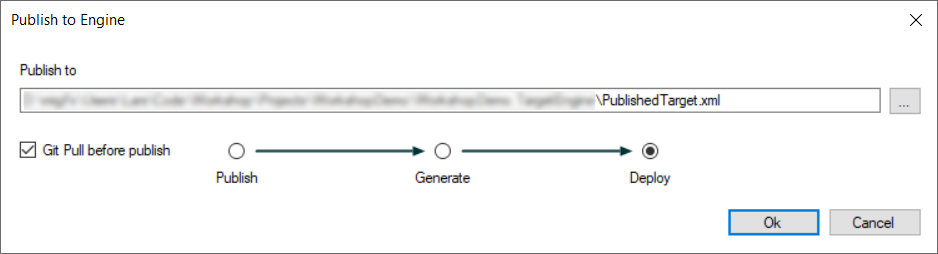
You can optionally perform a Git pull before publishing and then choose how far you want to go:
- Publish only (this is similar to what has been possible up to now)
- Publish and Generate
- Publish, Generate, and Deploy
If you go all the way to deploy, you will be presented with a deployment experience that is identical to the one in Visual Studio.
All output from the generate and deploy processing will be displayed in the Studio output windows, again similar to the experience in Visual Studio.
Portal Options
Deploying from Studio is identical to deploying from Visual Studio. Studio requires the same information as Visual Studio in order to deploy.
A new panel has been added to the Studio Options dialog for this purpose:
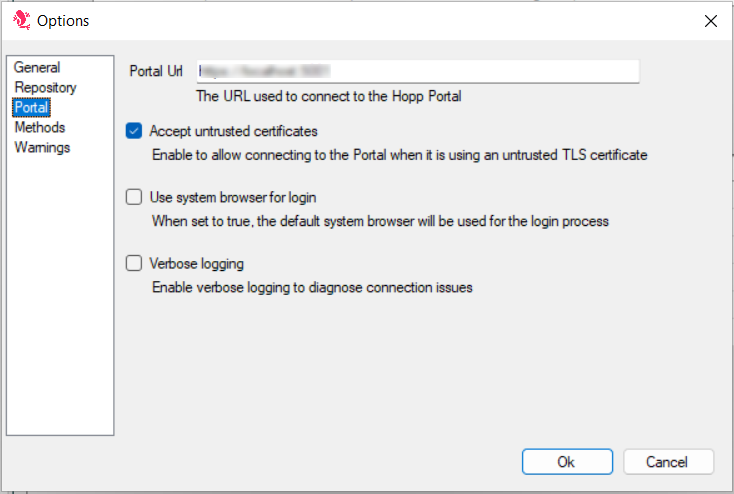
The Portal options used for deployment are shared between Studio and Visual Studio. Changes made in one are automatically reflected in the other.
You do not need to explicitly configure these options in Studio. Simply opening Visual Studio will automatically persist the shared options for Studio to use.
You can read more here: Publishing Maps and Deploying Engines
Per-track engine deployment
Previously, deploying an engine was a global operation. The engine would be deployed to a central location, and all tracks using that engine would load the new version on the next restart. This limited approach hindered larger migration projects from working efficiently and independently across different stages or sections of the migration mapping.
With version 2.6, this process has become more flexible. Deploying a new engine version still stores it in a central location, but now it adds a new Revision to the list of previous deployments.
Every track that uses the engine now specifies the exact revision in use. Different tracks can use different revisions of the same engine. This is optional; you can continue using the newest version automatically (as before) or explicitly opt in to this new feature.
New Engines view
The Operations / Execution menu for a track now includes a new Engines menu item:

The Engines view allows you to manage the revisions of the Source and Target Engines currently in use by the track.
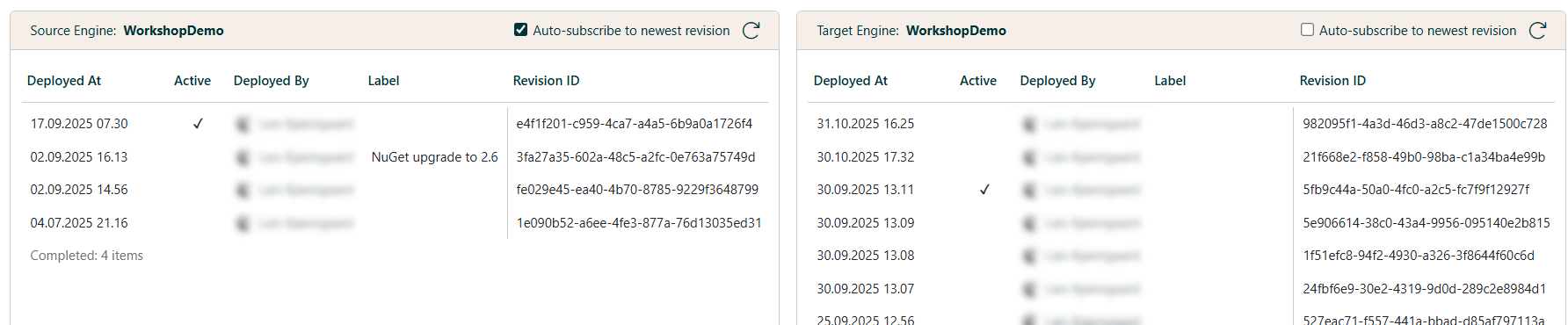
The Active column identifies the revision of the engine in use by the track. You can set a revision as active using the context menu in the list.
You may also label a revision for easier identification.
Auto-subscribe
If the Auto-subscribe to newest revision checkbox is checked, the track automatically activates a new revision upon deployment.

Auto-subscribing replicates how things worked before version 2.6. When version 2.6 is deployed, all existing tracks are set to auto-subscribe, preserving previous behavior until auto-subscribe is disabled.
Deploying
The dialog for deploying new engines from Visual Studio (and now from Hopp Studio in version 2.6) has been updated to support the new deployment model.
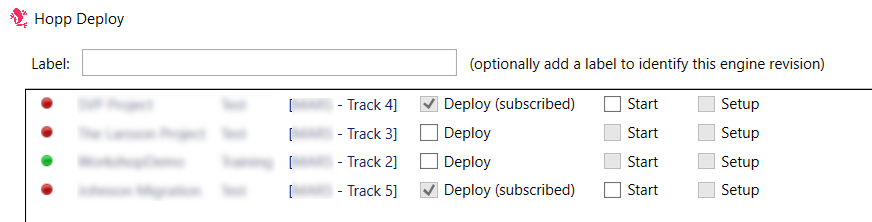
You can now label your deployment for easy identification of the resulting engine revision in the Portal.
The Deploy checkbox for each track using the engine determines whether the track will activate the new revision.
When a track is set to auto-subscribe to the deployed engine, the Deploy checkbox is disabled and checked, indicating that the track will automatically activate the new revision.
If a track is not auto-subscribed, only tracks with the Deploy checkbox checked will activate the new revision.
A track will only use the new revision if the Deploy checkbox is checked. You can also manually set any engine revision active from the Engines list for a given track.
Read more about engine deployment here: Engine Subscription
Automatic load of new engine
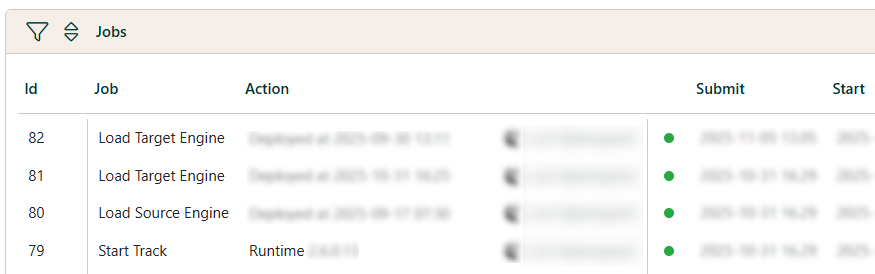
It is no longer necessary to restart a track to use a newly deployed engine. When a new engine revision is activated for a track, it is loaded immediately.
This change does not affect any jobs already running in the track; they will complete using the engine revision that was active when the job started.
The Job list clearly displays when a new engine revision is loaded and when it was deployed:
This change also affects the engine deployment dialog:
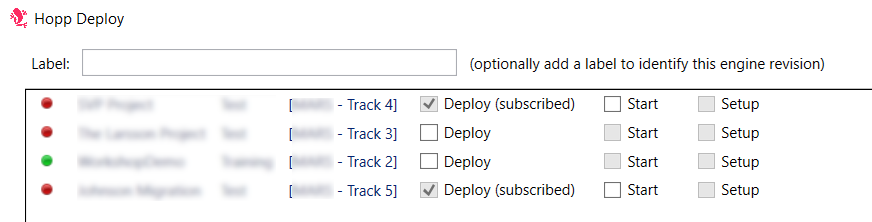
Restart Track is no longer required. You only need to decide:
- Whether to deploy to a given track (if not auto-subscribed, see above)
- Whether to start a track if it is stopped
- Whether to run Set Up after deployment
If selected, Set Up will not run until the track has loaded the new engine.
Deploying a new engine revision and the subsequent automatic loading of the engine only affects jobs submitted after this point.
Jobs already running when the new engine revision is loaded are unaffected and will complete using the revision active at submission time.
Deploy after Generate
A new checkbox has been added to the Generate dialog when launching the Engine Generator from within Visual Studio:

When checked, the deployment of the new engine will launch immediately after successful generation.
Target Delivery feedback
A new extension API enables feedback delivery from the migrated data load into the target system back to Hopp.
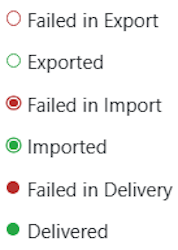
Issues and information from target delivery appear in the Portal as System Events. In Object lists, the status symbols have slightly changed to reflect the new Delivery status:
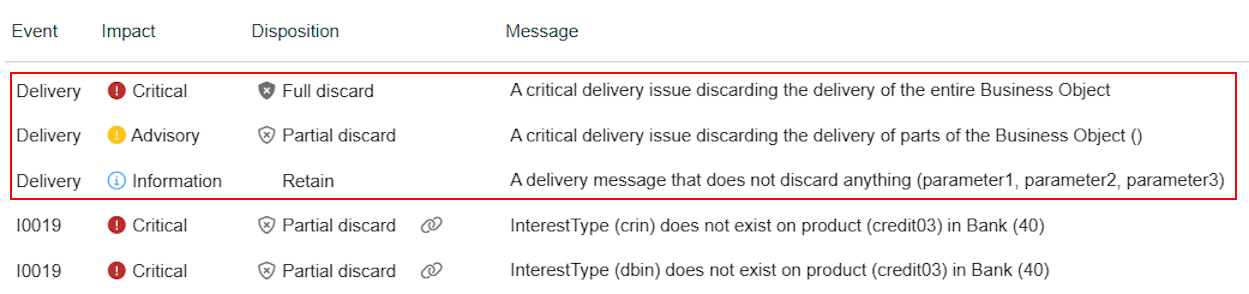
Feedback from the delivery to the target system is displayed in the Portal alongside the Events generated by Hopp itself:
Read more here: Delivery Feedback
Improved search in Object lists
When searching on a key value in the Portal Object list, you can now select Any field in the dropdown. This searches all key fields for the specified term (or for a null value).

By default, the search finds objects where the selected key field (or any key field) contains the search term.
If the search term contains unescaped SQL wildcards (%, _, or []), the search automatically switches to LIKE-based pattern matching.
Submit of Export, Import and Unload jobs on Key
The same improved search is now available to filter the objects when submitting Export, Import or Unload jobs in Portal Operations:
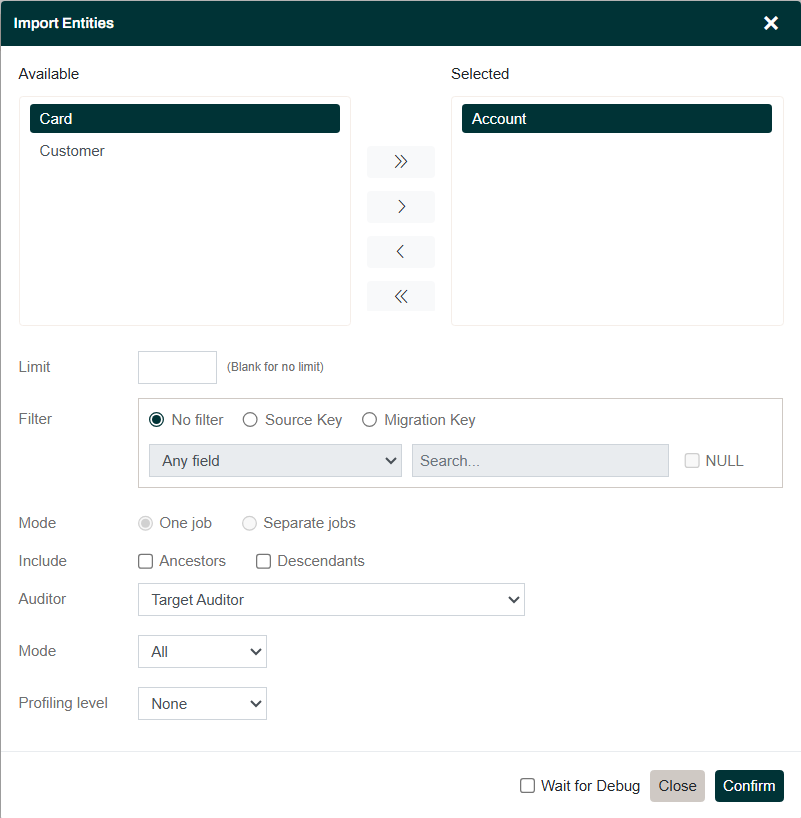
It is also available when launching a local debug from Visual Studio:
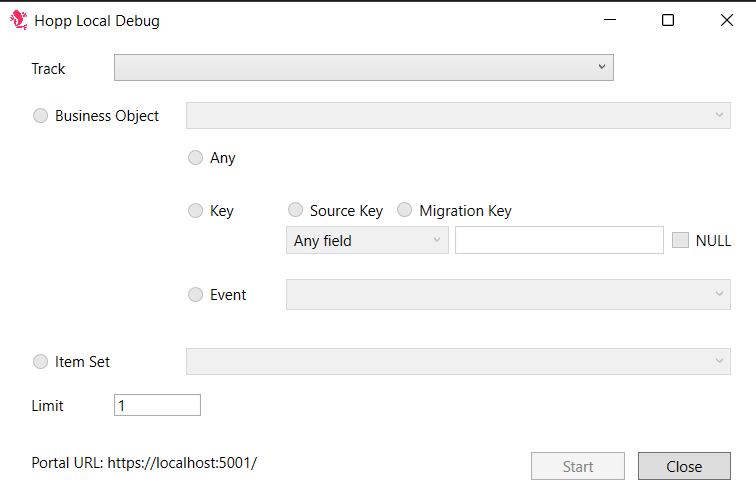
Export on Migration Key
In previous versions, export jobs could be submitted on Source Key only. With this release, export jobs can be submitted on both Source- and Migration Key.
Since the Migration Key is assigned during the first export, submitting jobs by Migration Key is only available after at least one export has been executed.
Direct load to Staging Tables
The Hopp Runtime can load data directly from various data stores into Hopp staging tables without relying on an intermediate unloaded file. Compared to the existing file-based loading, this can significantly reduce elapsed time when loading legacy source data to staging.
Direct load from SQL Server, Oracle, and DB2 tables is included with Hopp. Additionally, this extension point also allows us and customers to implement direct loading from other data sources.
File-based load remains available for scenarios where direct database connections are not feasible.
Read more: Loading Source Data
SAP Integrations
Hopp now comes with integrations specifically targeting the S/4 HANA Data Migration Cockpit
- Metadata Provider: Import metadata for all the staging tables for a Migration Object in the S/4 HANA Migration Cockpit
- Valueset Provider: Load Valuesets by issuing a SQL statement against the target HANA database
- Target Loader: Load migrated data directly from Hopp into the staging tables in the S/4 HANA Migration Cockpit
Studio Instrumentation (preview)
Studio Instrumentation is available on NuGet:
<PackageReference Include="Hopp.Studio.Instrumentation" Version="2.6.*" />
Using this package, you can instrument Studio from C# code in order to automatically create and use objects. This package is in preview and currently available for the Target Map only.
Below is a code sample that opens a Studio Target Map, connects to the repository and adds some Business Objects, Interface Fields and uses a Validation Rule with an Event.
var studio = Hopp.Instrumentation.Studio.Open();

studio.ConnectRepository("connection string");

var targetMap = studio.OpenTargetMap("path to .migtgt file");

var businessObject = targetMap.AddBusinessObject("Business Object name");

var child = businessObject.AddBusinessObject("Child Business Object name");

var interfaceField = child.AddInterfaceField("AccountNumber");

var validationRule = targetMap.ValidationRules.FirstOrDefault(r => string.Equals("ValidateAccountNumber", r.Name));

if (null != validationRule)
{
	var call = new ValidationRuleCall(validationRule);

	call.Parameters.First().Value = new InterfaceValue(interfaceField);

	var evt = targetMap.Events.FirstOrDefault(e => 1 == e.Number);

	if (null != evt)
	{
		call.Flags.First()
			.SetEvent(evt)
			.Parameters.First().Value = new InterfaceValue(interfaceField);
	}
}
Please reach out to Hopp for further information
Other improvements
Renegade Track process locking libraries and blocking restart
In previous versions of Hopp, a track process could be left running without any connection back to the runtime. This process locked the libraries of the track that it had loaded and caused all subsequent attempts to restart the track to fail.
The mechanism around restarting tracks and loading new versions of the engines have been completely reworked in this version, and this issue should no longer appear.
New boolean return options on Lookup Rule
Two new boolean return options have been added to Lookup Rules:
Always trueAlways false
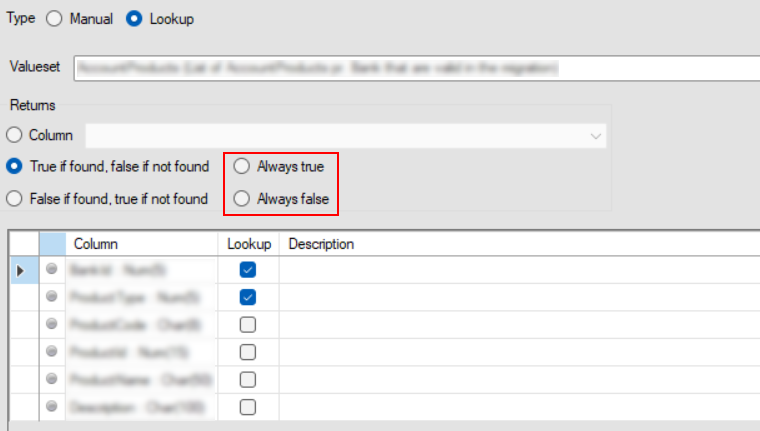
The options are in addition to the existing options True if found, false if not found and False if found, true if not found.
These new options causes the rule to always return the selected value, regardless of the outcome of the lookup. This is useful if you want to call a lookup rule in order to react to one of its events, but you do not want the outcome of the lookup to have any effect.
Improved validation of columns when uploading Translation Valueset
Translation Valuesets can be downloaded to an Excel file. This Excel file contains the data content of the Valueset plus a couple of columns to contain potential validation information for the Valueset rows.
When this Excel file is then uploaded to the Portal, the columns in the file are validated against the columns in the Valueset. Previously, this validation only checked that the first columns in the file matched the columns in the Valueset. Any columns thereafter were ignored in order to exclude the added columns containing the validation information.
This has been tightened up, so the upload now specifically removes the added validation columns from the uploaded file. Any remaining columns must match the columns of the Valueset.
When downloading a Translation Valueset from the Portal, you will notice that the Validation and Message columns inserted by Hopp are marked with an Excel comment:
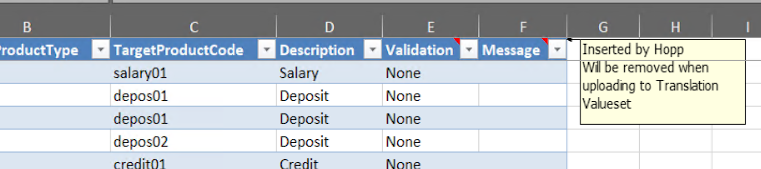
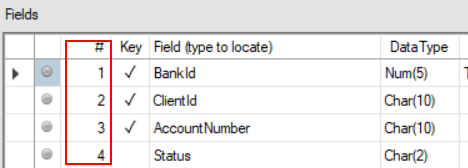
Column number in Metadata entity
A column ordinal has been added to the list of columns on a Metadata entity in Studio:
Fix DB2/zOS metadata query
Fixed an issue where the query in the DB2 DataServices to retrieve metadata from DB2 on z/OS was not working.
Allow typographic double quotes
The migration engines now allow typographic double quotes to pass through unchanged. Previously, typographic curly double quote characters ", ", ‟, and „ were replaced with simple double quotes ".
This change may affect comparison tests.
Improved speed of Publish to Portal job
The Object lists in the Portal no longer rely on the RootItem and RootItemLink tables populated when running a Publish to Portal job. Instead, these lists now use tables maintained by the runtime when the Business Objects are exported and imported.
As a result, the RootItem and RootItemLink tables have been removed and these tables are no longer populated when publishing to Portal. Expect the elapse-time for Publish to Portal to improve, since especially the population of the RootItem table previously accounted for a significant part of the elapse-time.
Improved experience when Engine Generator is not installed
A more informative error message is provided when engine generation is launched from Visual Studio or Studio and the Engine Generator has not been installed. Previously, the error message in this situation was a terse “File not found” error message.
The error message now clearly indicates that the Engine Generator is missing and instructs the user how to install it.
Issues fixed
Boolean values in dynamic Valueset (ticket: 4581)
Accept integers 0 and 1 as valid Boolean values. This allows Valuesets and source data input to supply 0 and 1 for boolean values.
Loss of newlines in transformed data
Fixed an issue where newlines were lost in interface data passed from the source engine to the target engine. If the interface value was then passed on to a target field, the line feed would ultimately be missing in the transformed data.
Fixed Visual Studio debug ignoring limit
Local Debug from Visual Studio now respects the limit to the number of items to run when selecting an item set for debugging.
Ignore corrupt locations setting file
Fixed an issue where a corrupt project locations XML file in the user’s %APPDATA% folder caused Studio to crash.
Missing parameters in View Query (ticket: 4607)
When evaluating a View Query to inspect result set data types, Query Parameters defined in the view are now correctly included in the SQL statement passed to the mock-up database.
Fix handling of consecutive underscores in AutoAssign
AutoAssign of Target Object fields now works correctly when field names contain consecutive underscores (__).
National Character error in Studio Source View
Fixed an issue where typing or pasting national characters into a Studio Source View failed on systems with certain keyboard and regional settings.