Operations
Master
Options
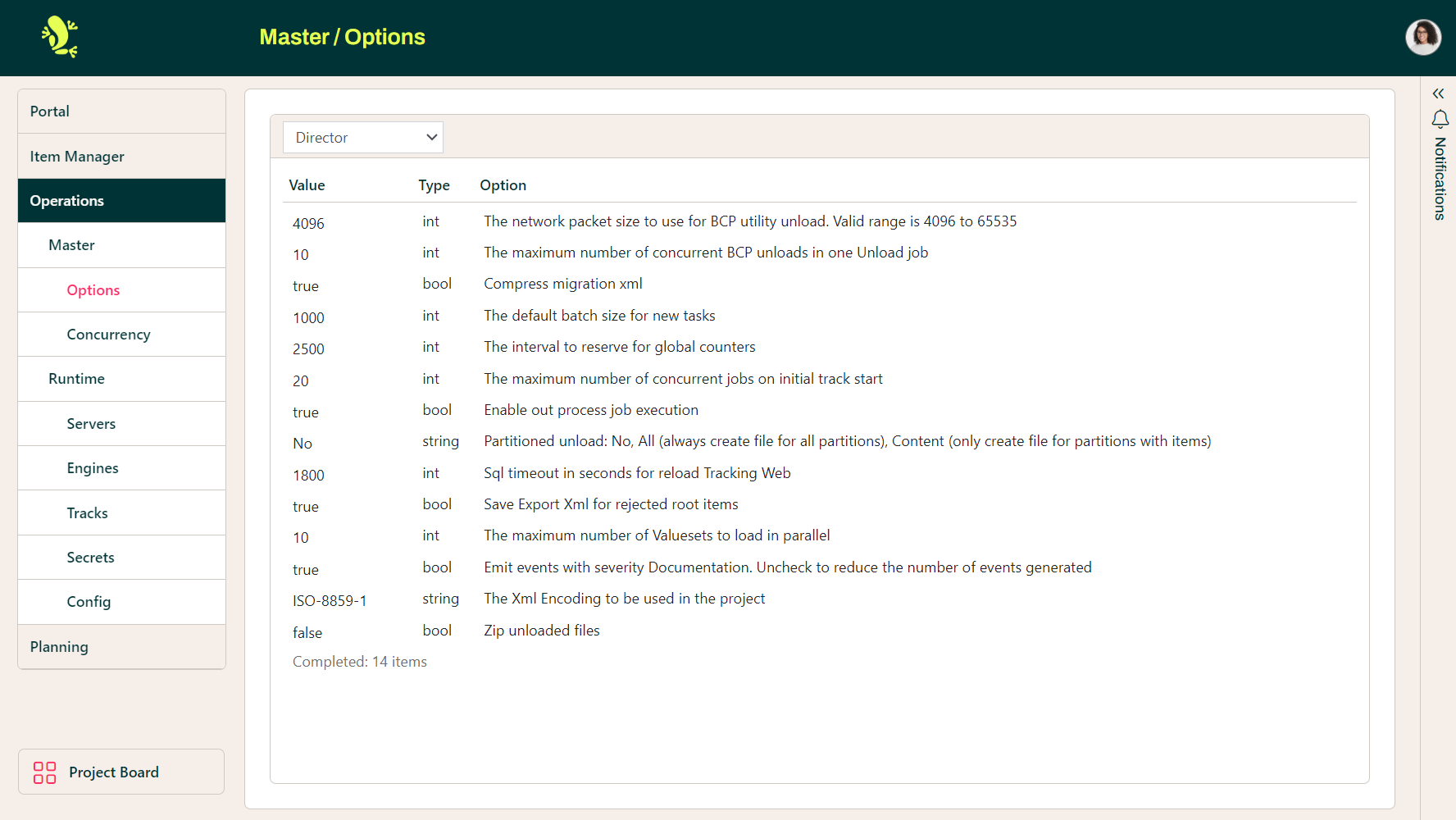
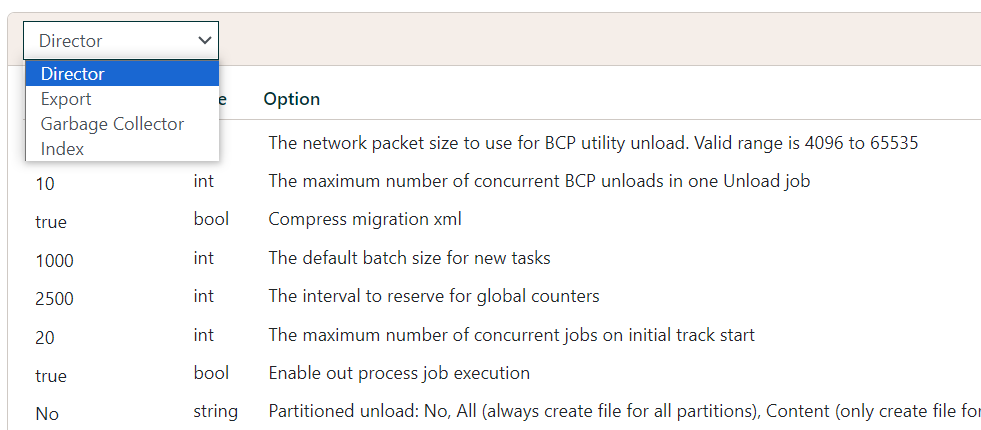
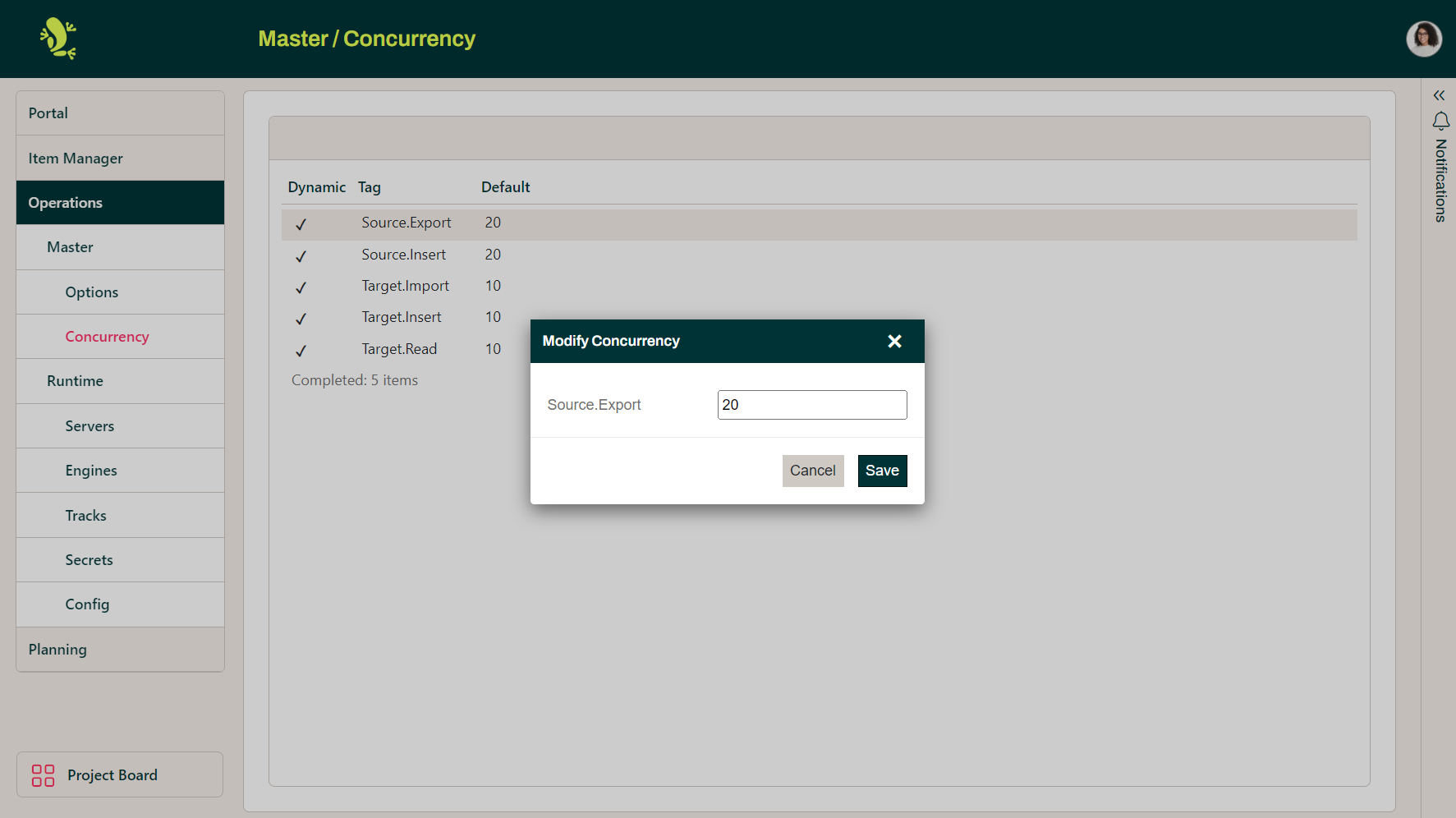
A number of options are available for each configurable area within Operations. Choose the relevant area using the dropdown.
The values for each Option can be modified.
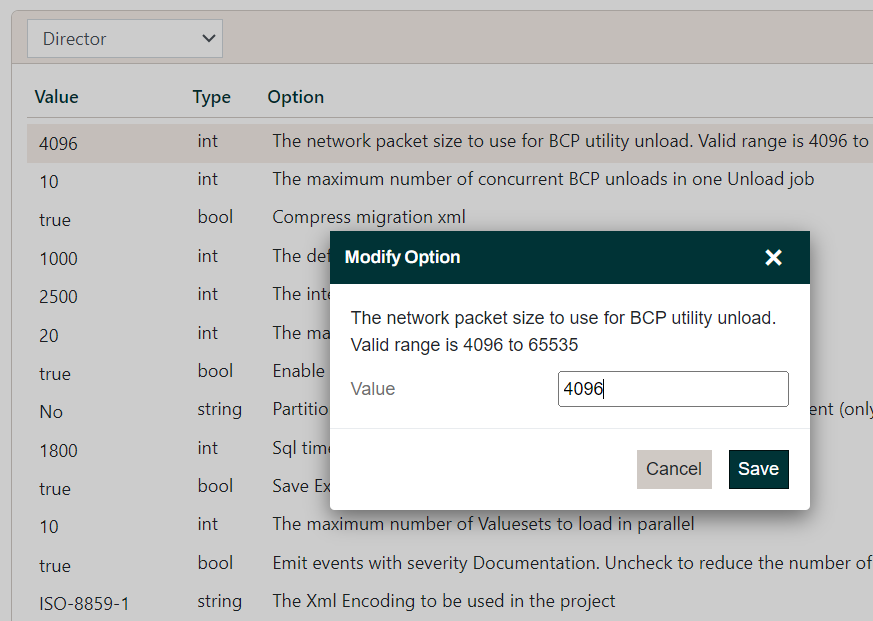
The installation typically comes pre-configured.
Concurrency
Runtime
In this section, you can set up and manage Servers, Engines, Tracks etc.
Servers
Here you maintain all the Servers in your installation setup:
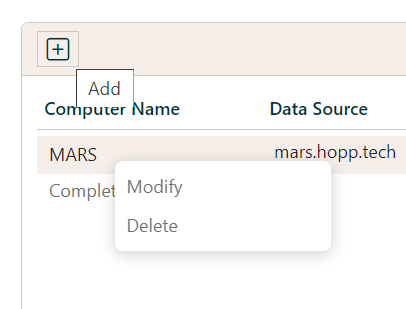
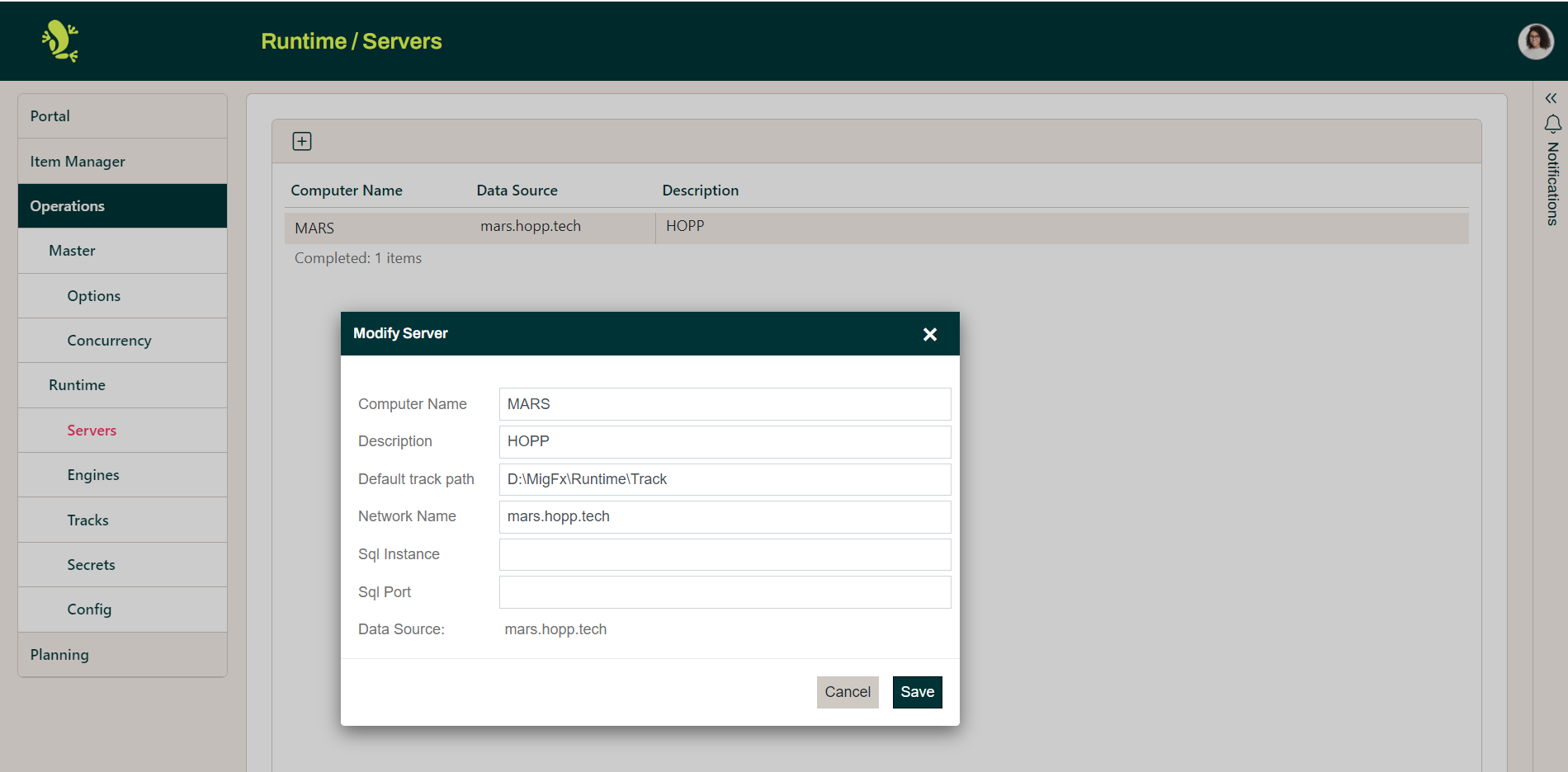
You can add new servers or modify existing ones. You also delete a server, but if it is in use by Tracks, the deletion will not succeed. Add or modify will show the Server dialog:
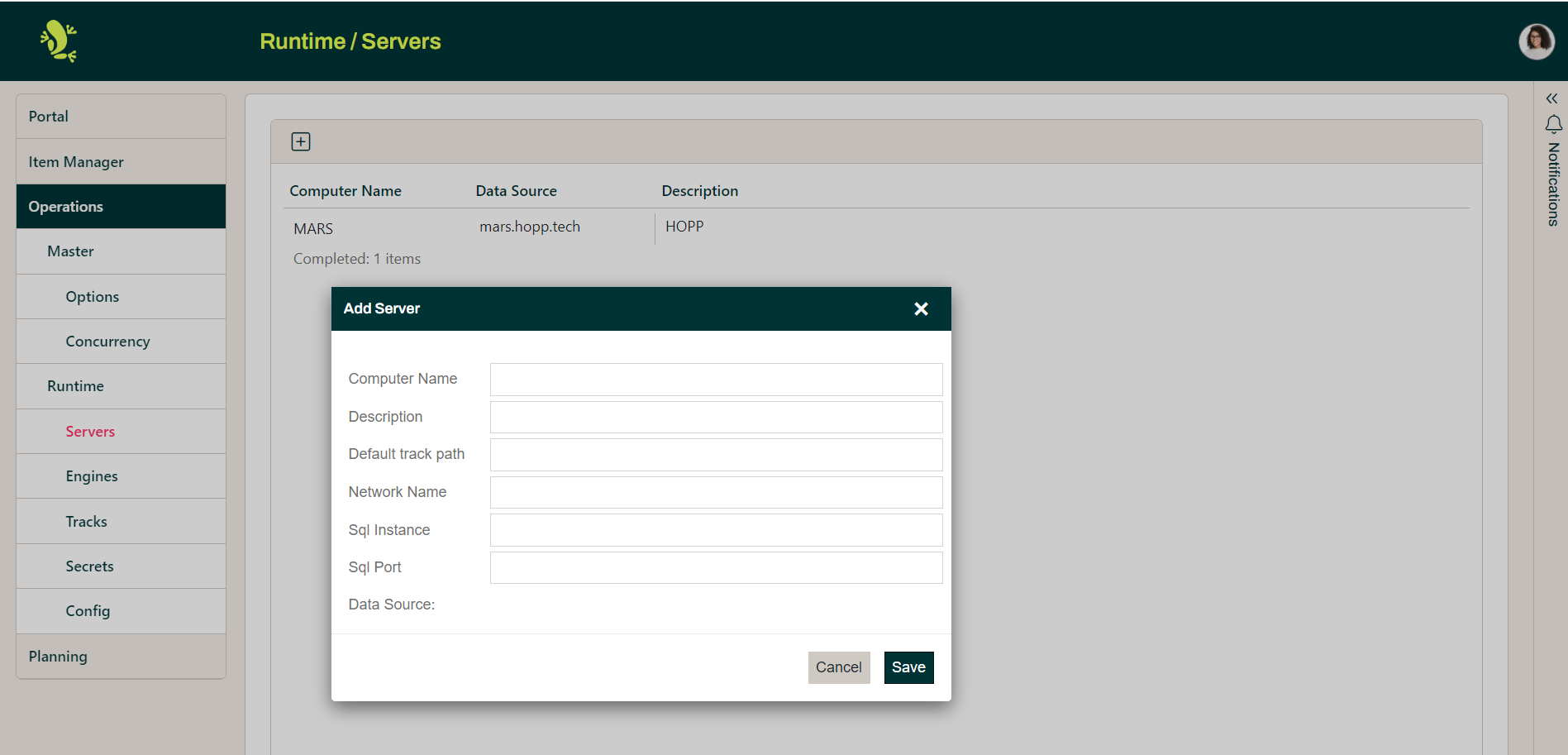
| Field Name | Description |
| Computer Name | This must be the name given locally on the server. If the server is an active server running one or more tracks, the Runtime Agent Windows service will use this name to identify any track start requests destined for the server. In detail the Runtime Agent will get the name of the machine from the operating system, and use this name to look for the Server in this list - so if the machine Name is not correct, the Agent will not find anything, and you will be unable to start any Tracks on the Server. |
| Description | The Description of the Server. Operations will show this description or the Machine Name of the Server in the UI as governed by the setting Show servers in Operations by described below (see Config). |
| Default track path | This is the default root folder for all the Tracks on the Server. When creating a new Track, Operations will automatically suggest best practice naming of all the folder paths for the newTrack under this root. |
| Network Name | The (optional) network name to use when connecting to the SQL Server instance on this Server. If blank, Machine Name will be used. |
| SQL Instance | An (optional) name for the SQL Instance on the Server. Leave blank for the Default Instance. |
| SQL Port | An (optional) port for the SQL Instance on the Server. Leave blank for the default port. |
| DataSource | The label DataSource will update to show the exact DataSource that is constructed from the values of Machine Name, Network Name, Sql Instance and Port. |
Engines
Here you create and maintain the Engines that your Projects can use. You can add or modify Engines. If an Engine is not in use by any Project, you can also delete it.
Creating an Engine
Add or Modify will show the Engine dialog:
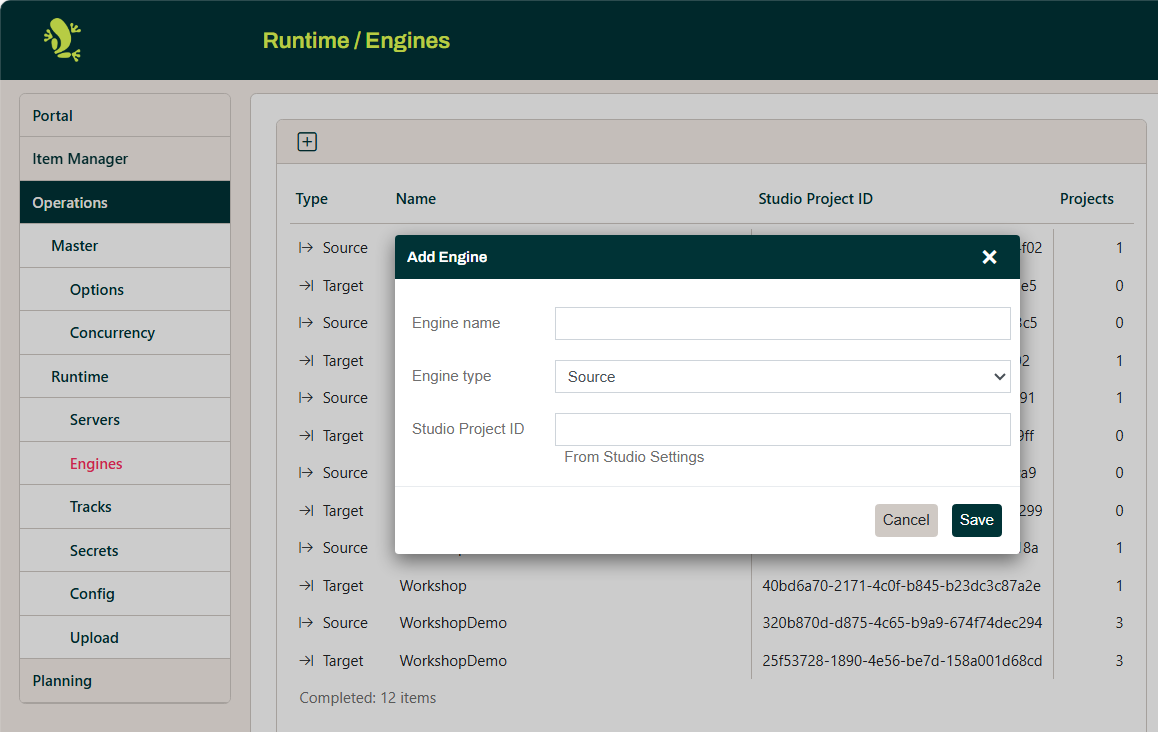
| Field Name | Description |
| Engine name | The Engine name is displayed when you select Engines for your Projects. |
| Engine type | The Engine can be either a Source- or a Target Engine. |
| Studio Project ID | The id assigned to this map in Studio.
You can find this ID on the Settings of the root node in the Studio project Explorer tree view:
|
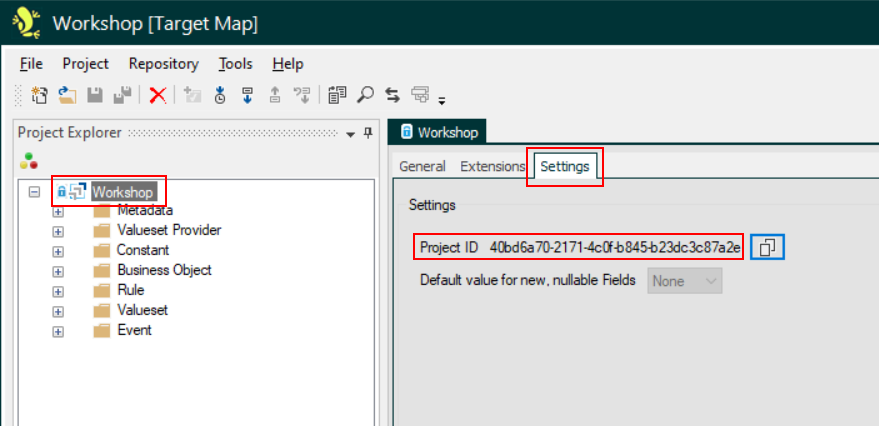
An engine can be created in 2 different ways. You can create it here in the Portal as described above.
Or you can just deploy the engine from Visual Studio. The deployment will create the engine if it does not already exist.
Read more about engine deployment here: Publishing Maps and Deploying Engines
Engine Usage and Revisions
Hovering the mouse pointer over the number of projects using a given engine will display the projects:
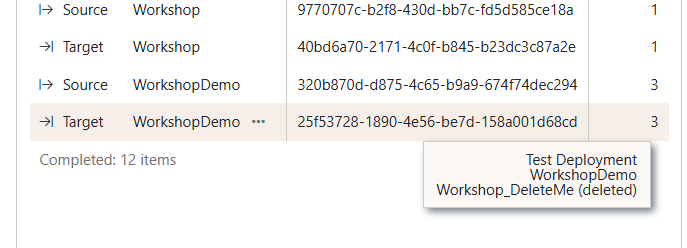
Selecting an Engine in the left-hand list will show the stack of deployed engine revisions for the engine in the right-hand list:
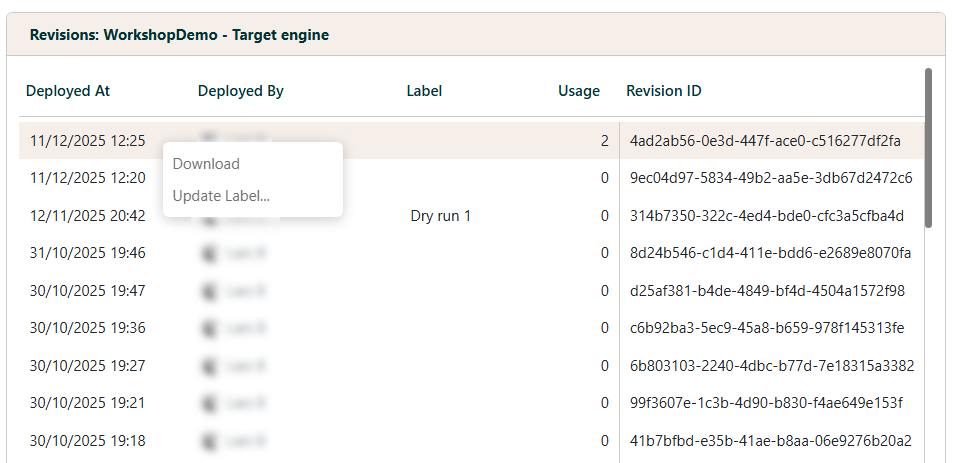
For a given revision, you can download a zip file with the engine libraries or provide a label for easy identification. Hovering the mouse pointer over the number of usages for given revision will display the tracks using the revision:
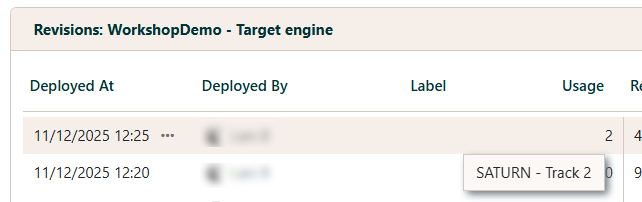
The revision used is determined per Track that uses the given engine. Read more about Engine Deployment and Subscription here: Engine Subscription.
Tracks
This is where you create and maintain Tracks on your Servers. You can add and modify Tracks, decide which Project uses a given Track, and finally link 2 different Tracks for Archiving (see below). You can delete a Track if it is not in use. Note that deleting a Track only removes it from the Portal management. Neither databases nor files for the track are not deleted.
Use the Filter dropdown to filter the list of tracks by:
- All
- Runtime Tracks only
- Archive Tracks only
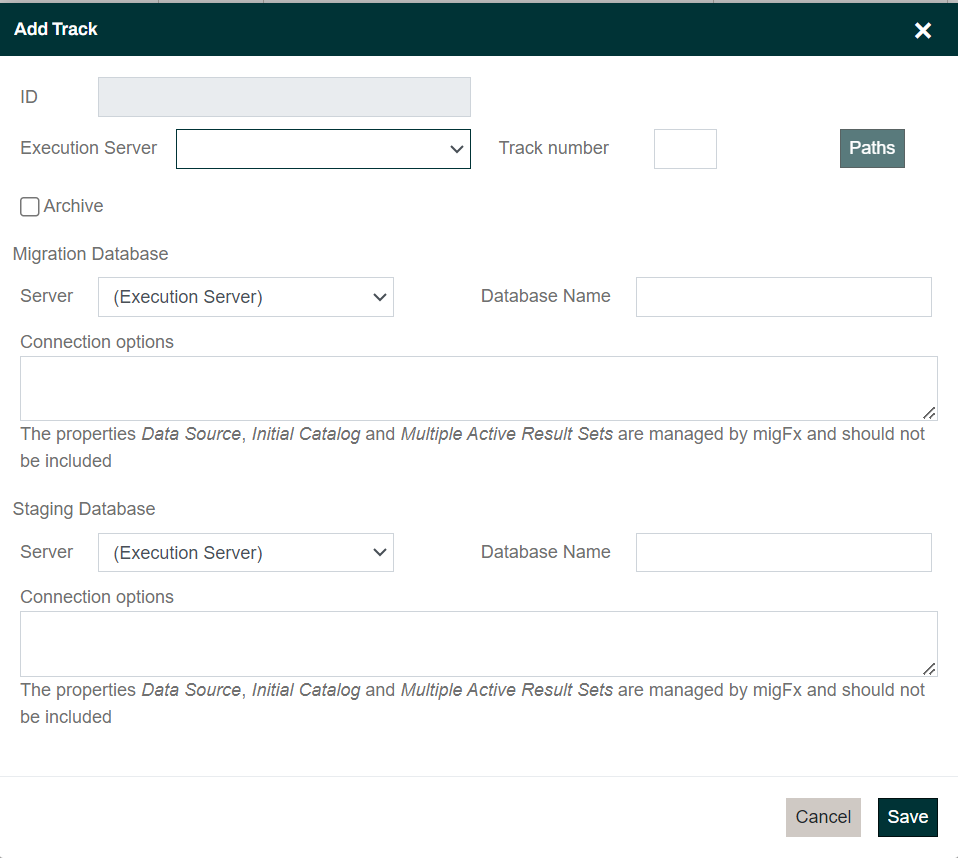
| Field | Description |
| ID | The Track ID is assigned when a new Track is added |
| Execution Server | The Server running the Track Watcher Service that will monitor for start requests for the Track. All jobs in the Track will run on this server. |
| Track Number | The number of the Track on the Execution Server. This must be unique for the Server. If you try to create a Track with a duplicate number, you will get an error. |
| Paths... | Click the Paths... button to specify the folders to use in the Track (see below). If you do not do this for a new Track, a set of default folders will automatically be created. |
| Archive | Check this to specify that this Track is an Archive Track and will not be executing any migration jobs. You can only change this setting if the Track is not participating in any Archiving link (see below). Archive Tracks only show up here and are hidden from the rest of the Portal. |
| Migration Database: Server | The Server where the Migration database is located. It is default the same as the Execution Server, but you can choose another server. |
| Migration Database: Database name | The name of the Migration database. Note that you must create this database yourself. |
| Migration Database: Connection options | An optional connection string format to use when connecting to the Migration database. If not specified, the global connection string maintained in the Config panel (see below) is used. |
| Staging Database: Server | The Server where the Staging database is located. It is default the same as the Execution Server, but you can choose another server. |
| Staging Database: Database name | The name of the Staging database. Note that you must create this database yourself. |
| Staging Database: Connection options | An optional connection string format to use when connecting to the Staging database. If not specified, the global connection string maintained in the Config panel (see below) is used. |
Paths
Clicking the Paths... button brings up the Paths dialog. Here you can set the paths to the folders used by the Track. Note that these are the paths as seen from the Execution Server of the Track. It is possible to specify network share paths (starting with \\).
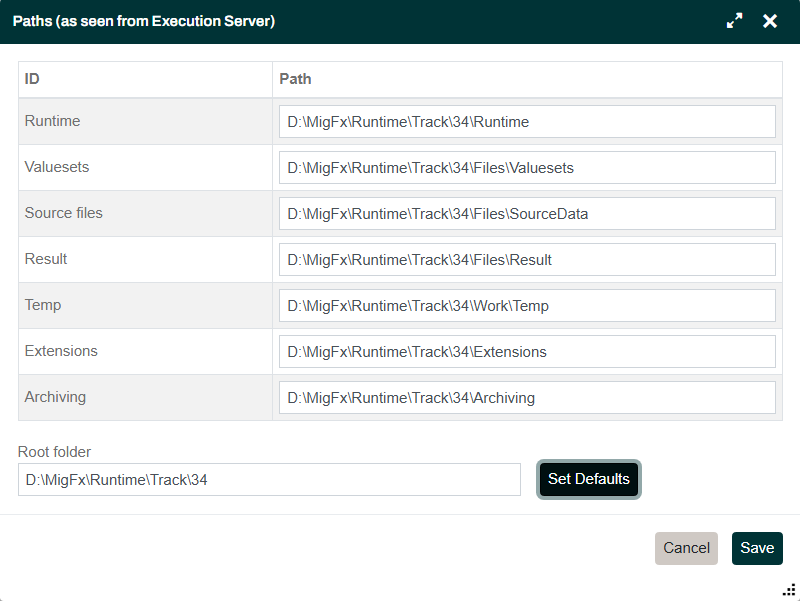
- Paths:
- Runtime: The Operations will copy the Runtime as well as the Engines to be used by the Track to this folder and launch the Track governing process from here.
- Valuesets: The Default DataServices extension delivered with Hopp will load file-based Valuesets from here
- Source files: Source to be loaded into the Staging database must be placed in subfolders under this folder - one subfolder pr Metadata alias in the Source Map
- Result: Operations will place the unloaded results from the migration in subfolders under this folder, one subfolder pr unload job
- Temp: Working folder for temporary files utilized by the Track
- Extensions: This folder will be provided for any extensions running as jobs under the Runtime
- Archiving: This folder is not active yet but will be playing a role in the coming release of automatic archiving of the Runtime track
- Root folder: Clicking the Set Defaults button will automatically create a suggested best-practice hierarchy of paths under the specified Root folder
- Set Defaults: Click the button automatically create a suggested best-practice hierarchy of paths under the specified Root folder
Usage
Click the Usage button to assign a Track to be used by a given Project - or to release the Track for use by other Projects.
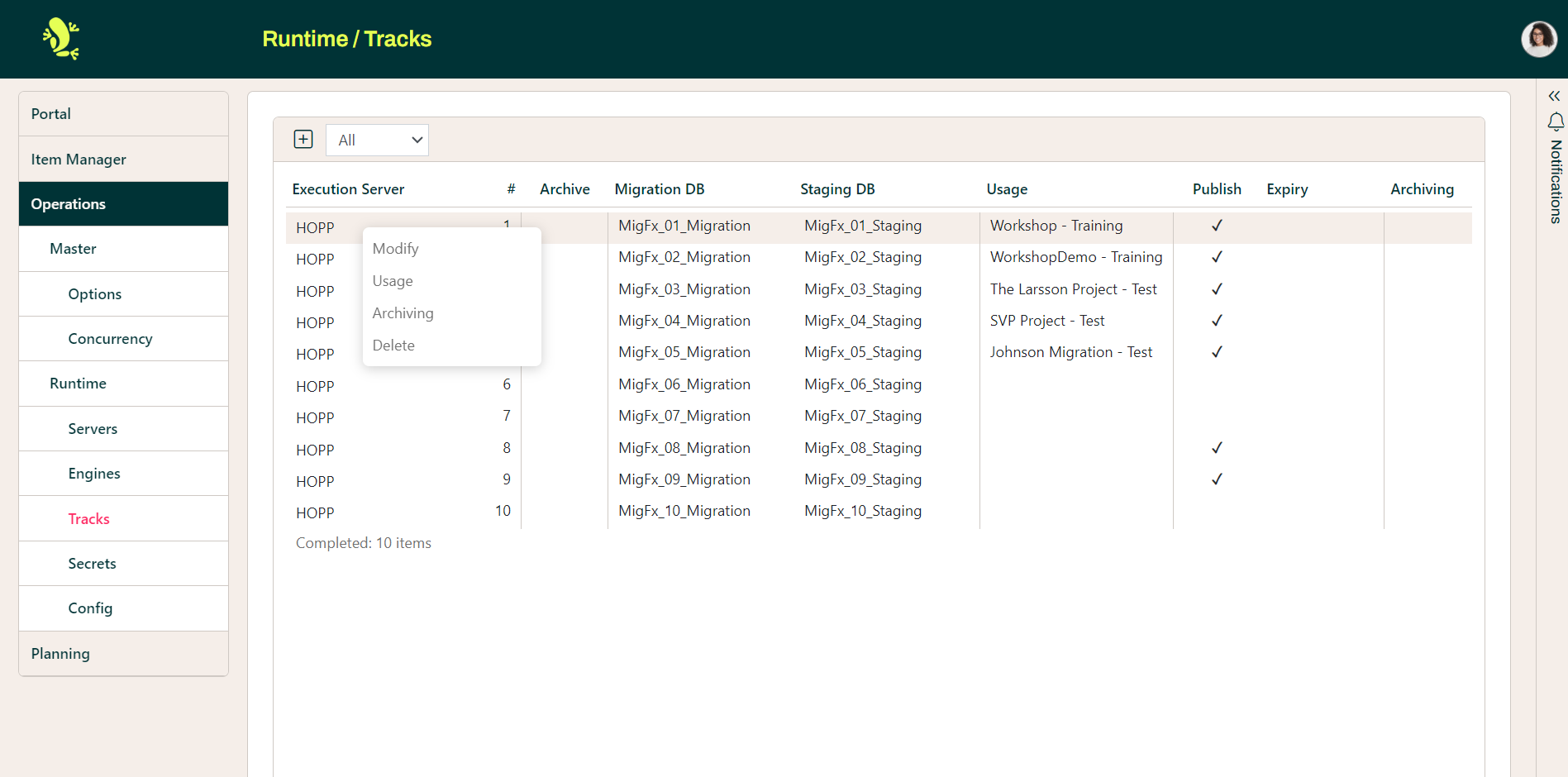
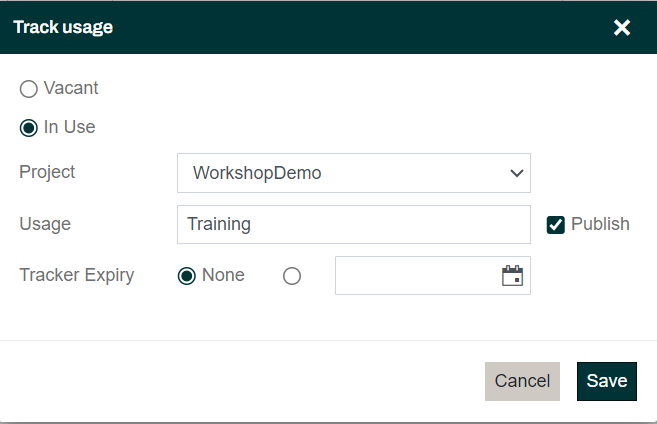
- Vacant: The Track is vacant and not in use by any Project
- In Use: The Track is in use by a Project
- Project: Choose the Project using the Track
- Usage: Give this usage of the Track a label. This label will show up in the Portal
- Publish: The Track will not show up anywhere in the Portal if Publish is unchecked. Use this setting to keep an new track hidden while you are setting everything up
- Tracker Expiry: If set, the Usage will not be visible in the Portal past this date
Archiving
Linking Tracks for Archiving will enable the automatic archiving:
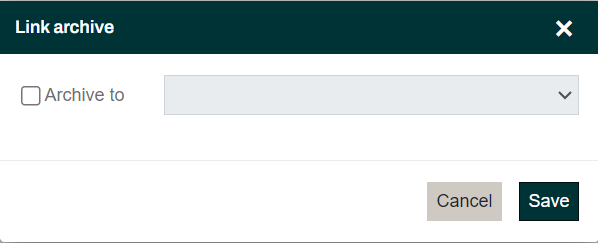
You only can link a Runtime Track to an Archive Track being used by the same Project. An automatic Archive will:
- Backup the Archive databases and files to the Archiving folder of the Archive Track.
- Backup the Runtime databases and files and move them to the Archiving folder of the Archive Track
- Restore and replace the Archive databases with the Runtime backup
- Delete the backup of the Runtime databases
Secrets
Hopp loads Metadata and dynamic Valuesets from DataService Provider extensions. A Provider to read Metadata and Valuesets from Excel is baked into Hopp from the beginning. Hopp can provide additional DataService Providers to get Metadata and Valuesets from for instance SQL Server, Oracle or DB2. Finally, bespoke DataService Providers can be developed to get Metadata and Valuesets from other sources.
The SQL Server, Oracle, and DB2 DataServices from Hopp all require a connection string as parameter. In some cases, it may be necessary to add sensitive information - a password - to a connection string. Other DataServices may also require sensitive information in parameters.
This poses a problem because the DataServices parameters are visible to all users in Studio and - if provided via a Runtime Constant - also visible to all users in Operations and even Business Users in the Portal.
Administration of Secrets
To get around this, Hopp supports Secrets. A Secret is a named value, and the value of the Secret is maintained in the Portal Configuration:
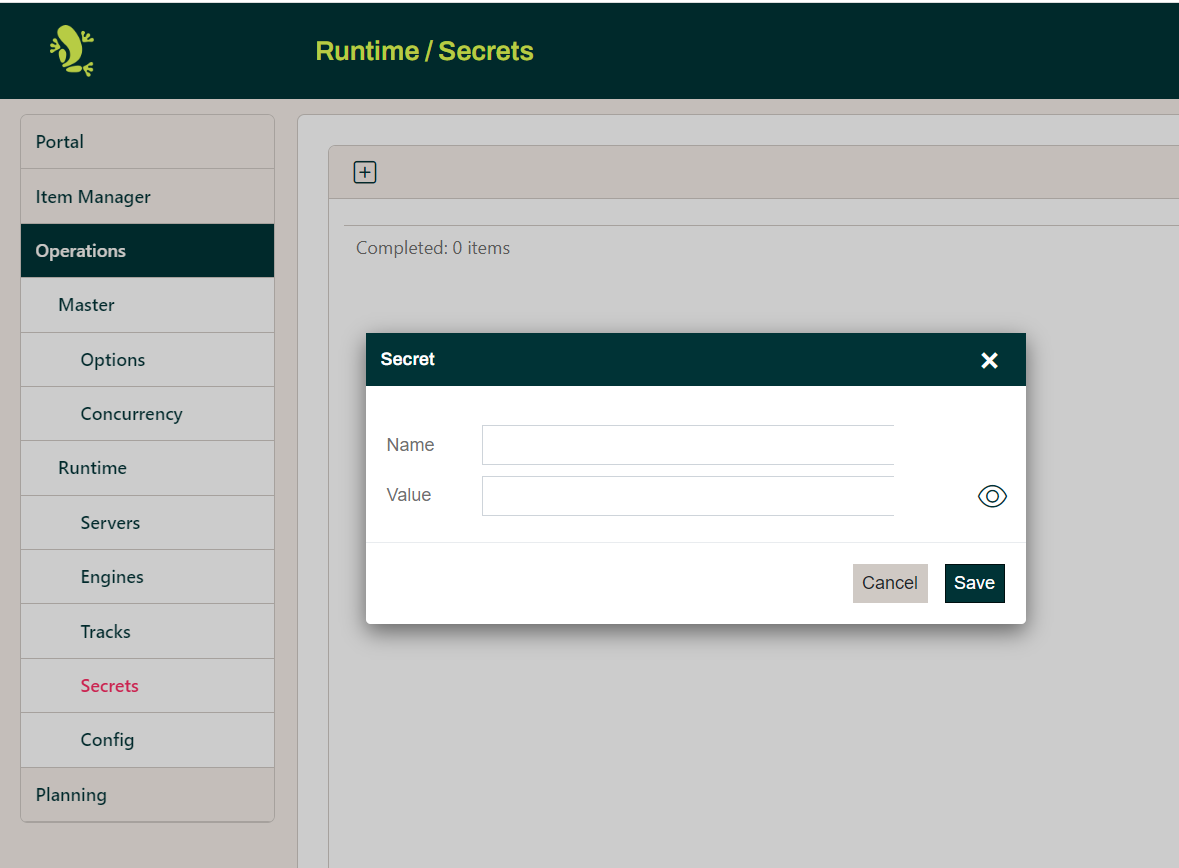
Secrets are stored in the Master database with an encrypted secret value.
Config
In the Config section, you can edit a few global configuration settings.
Remember to click the Save button if you make any changes.
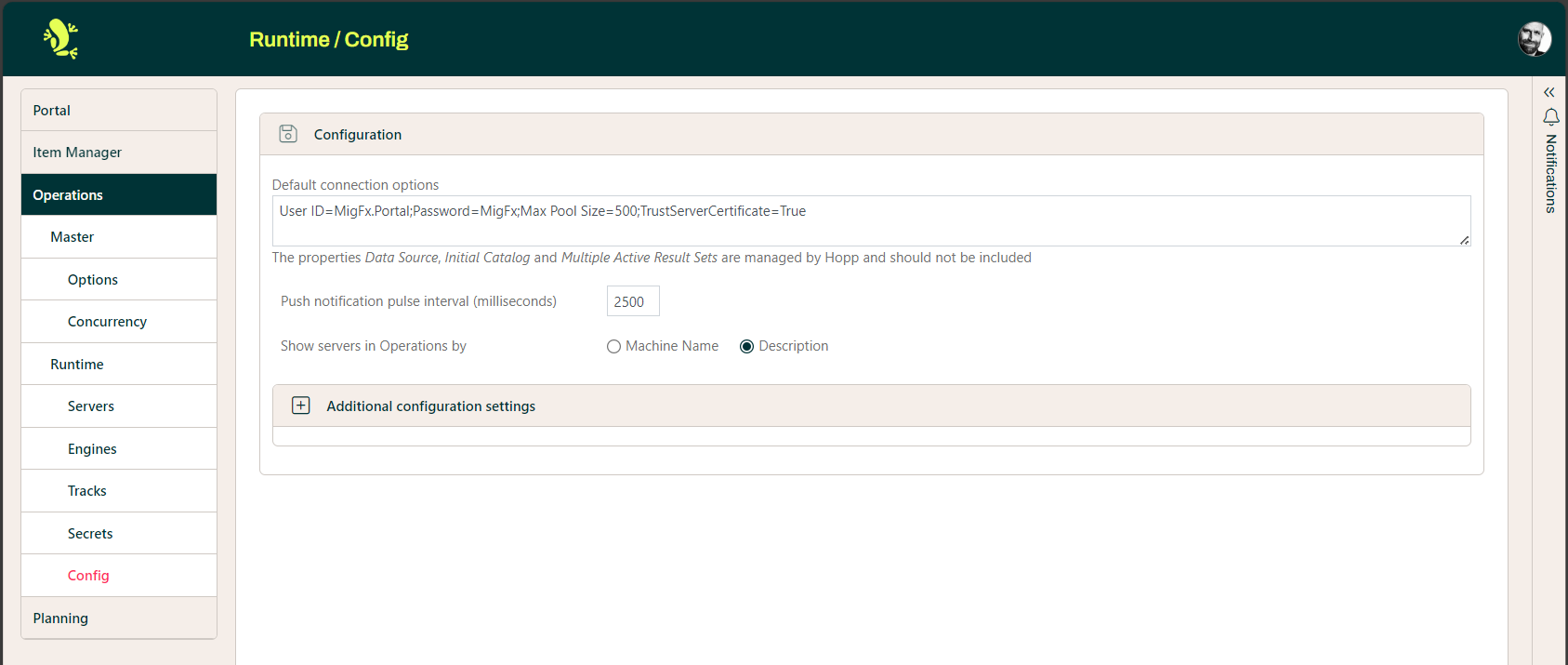
- Default connection string format: This is the format the Runtime will use for the connection strings. In a given context, it will replace the placeholder string @server with the actual Data source of the given SQL Server instance and the placeholder string @database with the database name. Normally this global format is all you need to specify, but as you have seen above, it is possible to override this format in specific instances. Notice that the connection string setting MultipleActiveResultsets is set to true. This setting is vital for the Runtime.
- Web Service URL for Translation Valuesets: This is the URL all Tracks will use when they need to load the Translation Valuesets from the Portal. The server part of the URL will normally be the same as the URL type in the browser to get hold of the Portal web application
- Push notification pulse interval (milliseconds): This interval determines how often the Portal reads the state of Servers and Tracks from the Runtime master database and pushes any change to the users' browsers. It is preset to 2500 milliseconds which is normally fine. You only need to touch this setting if these reads are imposing a heavy load on the master server. Normally this will never be the case.
- Show servers in Operations by: Determine whether Servers will be shown in Operations by their Machine Name or by their Description. This will change the way Tracks are shown in the Operations menu as well as in the Title bar of any Track window
- Additional configuration settings: Here you can add additional settings that will be automatically added to the Track config file when a track is started. You can add either connection strings (will be added to the connectionStrings section) or application settings (will be added to the appSettings section). This is useful if you develop extensions to the Runtime that need their own settings in the config file, for instance, a connection string to your own Master database.
Upload
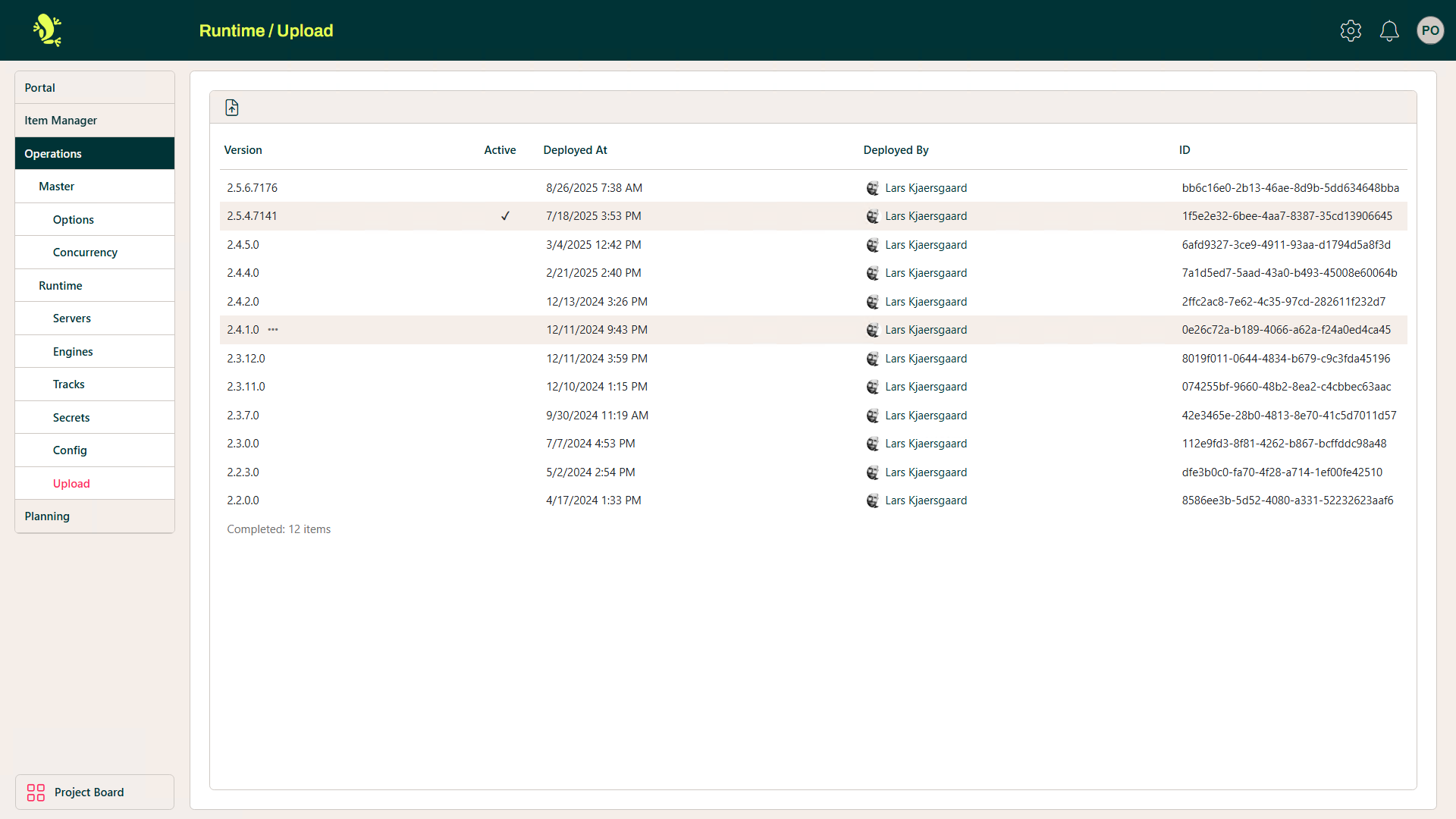
When Hopp delivers new releases and hotfixes to the Runtime, the runtime.zip file from the Hopp Download page for your version can be uploaded here.