Release 2.7
New and improved features
New installers and a Portal configuration wizard
Two installers replace the manual, multi-step installation and upgrade: one for the Portal on your Master Server, and one for the Runtime Agent on each Execution Server. Each installs everything it needs and walks you through setup.
Portal installer and configuration wizard
The Hopp.Portal.exe installer sets up the Portal on your Master Server. It installs everything the Portal needs (including the .NET and ASP.NET Core runtimes), sets up the Hopp Portal as a Windows service, and creates a settings folder that upgrades never overwrite.
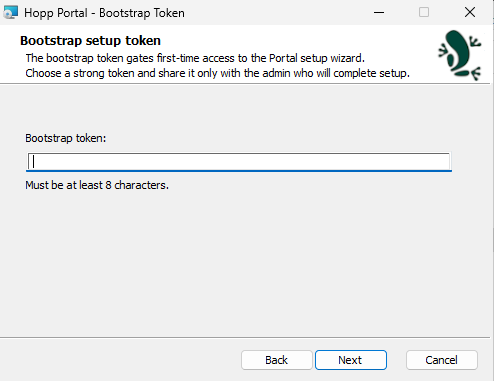
The first time the Portal starts, it opens a setup page in your browser instead of going live straight away. A bootstrap token, a secret you choose during install, keeps that page private. From there, a wizard guides you through everything the Portal needs, one page at a time: its web address, where it stores files, how people sign in (and the first administrator account), any optional add-ons, how it is reached securely over the network, and size limits for uploads. At the end it shows you a summary; you click Apply, and the Portal goes live. No file needs editing by hand for the initial setup.
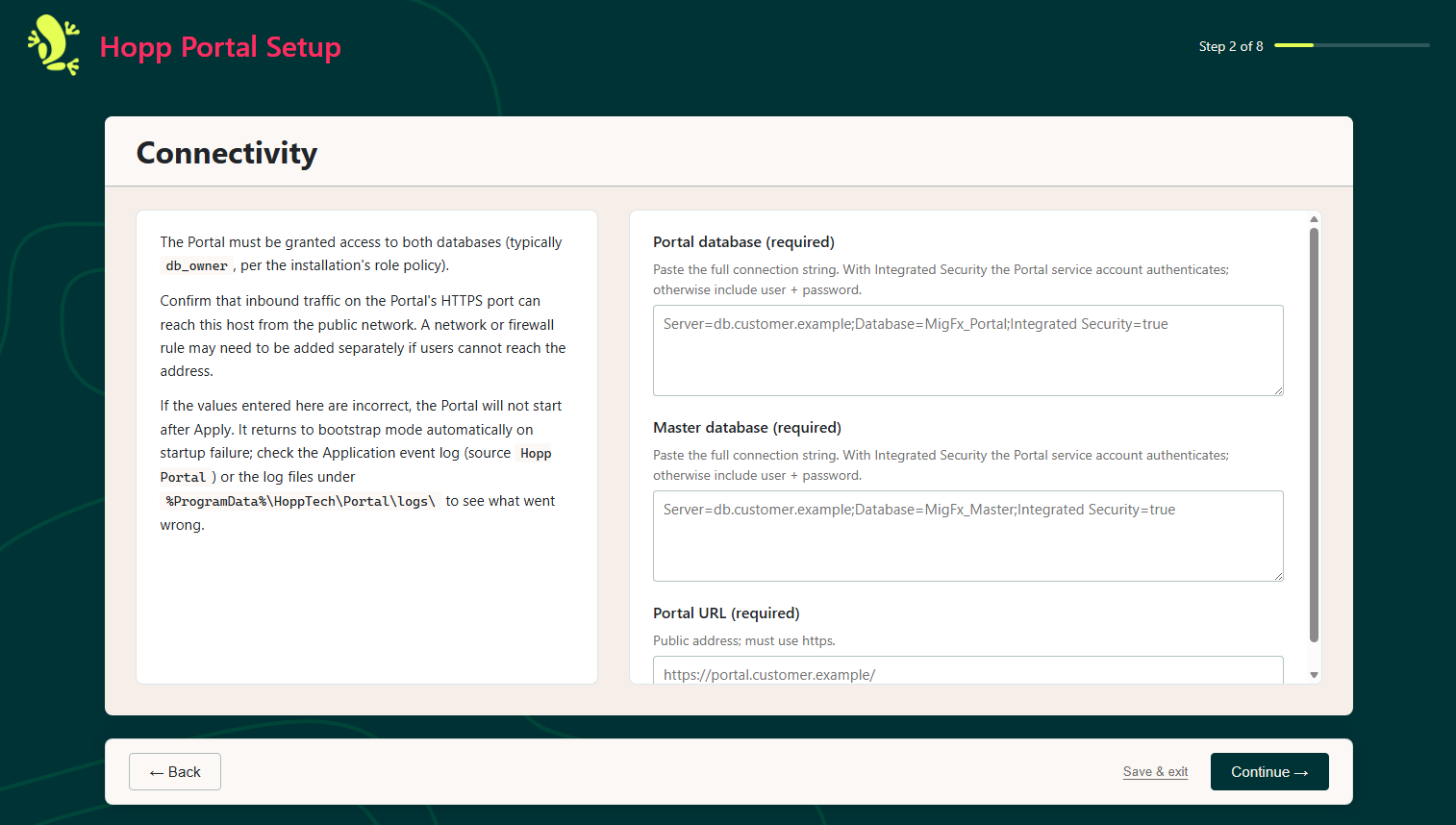
If a setting is wrong and the Portal cannot go live, it reopens the setup page, names the setting to fix and keeps your other answers. People stay signed in across restarts and upgrades, and you can reopen the wizard at any time to change settings. A quiet, unattended install is available here too.
See Setting up the Master Server.
Runtime Agent installer
The Hopp.Runtime.Agent.exe installer sets up an Execution Server. It installs the components it needs (including the .NET runtime) and sets up the Runtime Agent as a Windows service that runs under an account you choose.
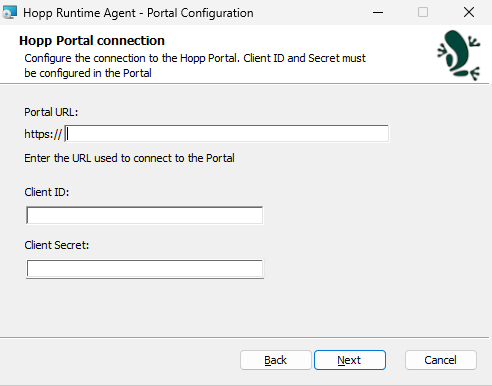
It has three dialogs: which Windows account the service should run as, how to reach the Portal (its web address plus an ID and secret you create in the Portal), and any optional commands to run when the service starts or stops. After that, the Agent gets the rest of its settings from the Portal automatically, so there are no configuration files to edit by hand on each server, even after an upgrade. For setting up many servers at once, there is also a quiet, unattended install.
See Setting up an Execution Server.
Database setup and upgrade with one command
Setting up or upgrading the Hopp databases used to mean a setup script per database on a new installation, and a refactor script per database for every release, run in the right order. The database scripts download now holds one tool for both. A single command finds every database of an installation through the Master database, checks first that each one exists and that you have the rights it needs, and then brings each one up to the current release; if a check fails, it changes nothing. The same command serves a new installation and an upgrade, a status mode shows the release each database is on, and a dry run writes the SQL to files instead of changing anything, for a DBA who reviews and runs every change.
The Portal, Item Manager and Planning databases are set up from their own scripts in the same download; run the Item Manager and Planning scripts only for the modules you install. The separate Portal, Item Manager and Planning downloads are no longer published.
Release 2.7 upgrades from 2.6.16. Upgrade an older installation to 2.6.16 first.
See Upgrading the Databases for how to run the database scripts, and the deployment notes for this release.
Client applications
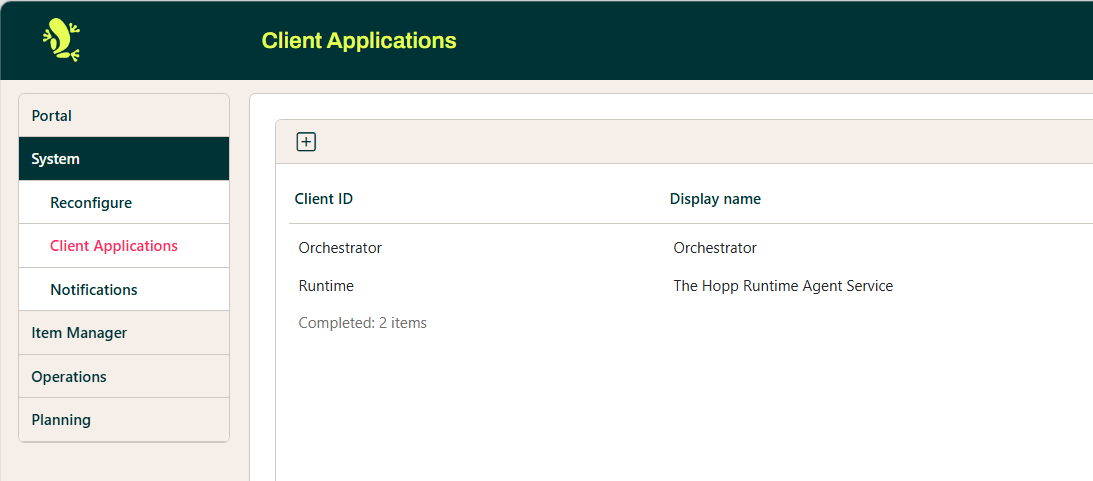
Other programs that connect to Hopp, such as each Runtime Agent or the automation, sign in with an ID and a secret. These are now created and managed on their own page in the Portal, Configuration > System > Client Applications, instead of in a configuration file on the server. An administrator can add an entry, give it a name, and copy the ID and secret to the clipboard when it is created. The secret is shown only once, when you create it, and is stored securely afterwards.
Notification and email settings
Hopp can let people know about changes to the items and events they follow, both inside the Portal and by email. The messages it sends, and the mail server it sends them through, are now managed inside the Portal, under Configuration > System > Notifications. Until now these lived in a configuration file that only someone with server access could change; now an administrator edits them from the browser, and changes take effect straight away, with no restart.
There are two parts. Templates lets you tailor each message Hopp sends, with a live preview as you work, an editor (with a switch to raw HTML), and a drop-down to insert the details that are filled in automatically, such as the item name. SMTP Relay holds your outgoing mail settings; a password is optional, so a mail server that does not require one works too, and any password you do enter is stored securely and never shown again.
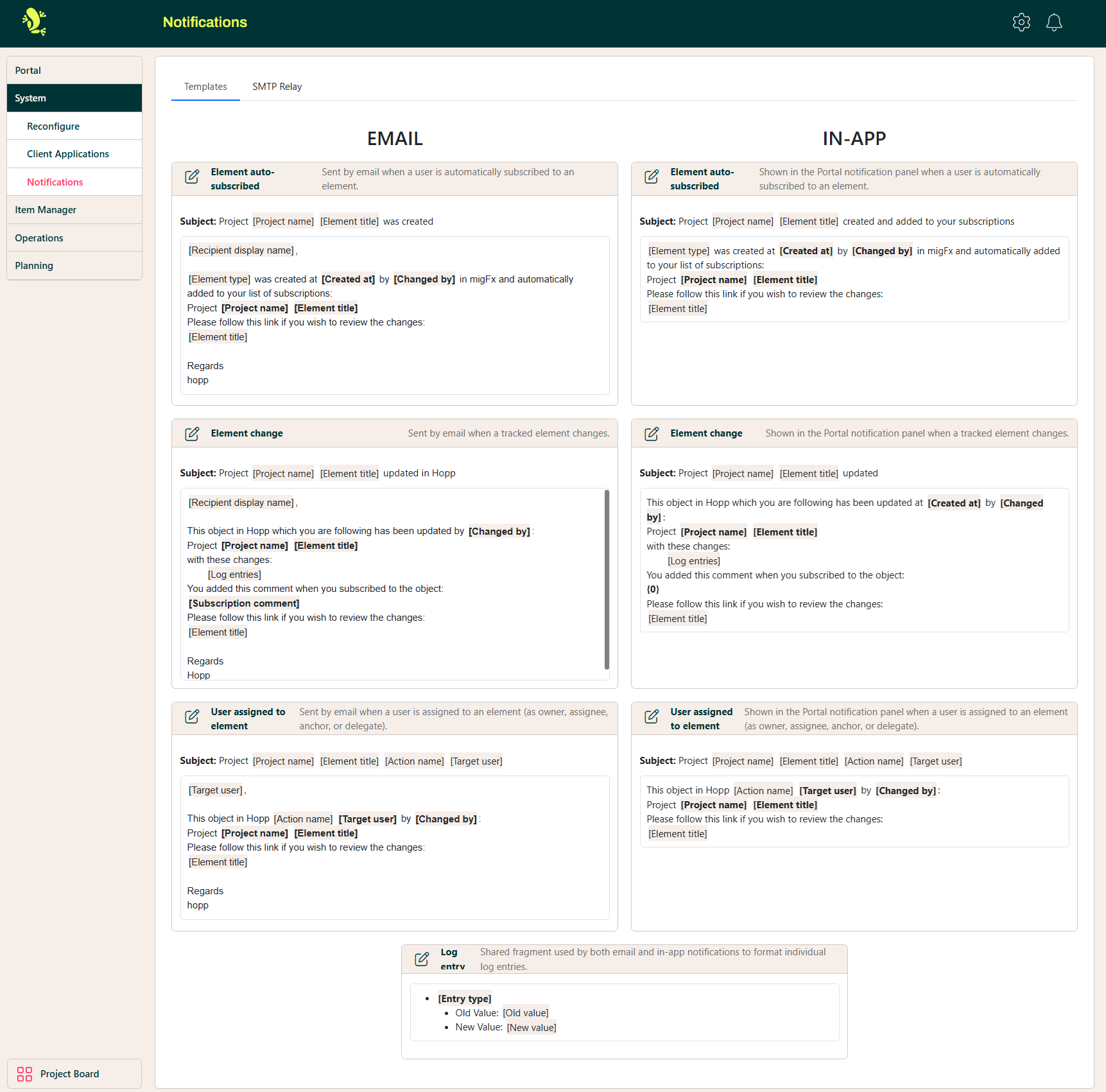
See Setting up Notification and Email.
Move objects in the Target Map, and the Source Map follows
When you reorganize the Target Map, moving a Business Object or a Target Object is now a true move. The object keeps its identity in place, so the matching object in the Source Map moves to the same position automatically the next time you import the Target Interface, and the source mappings you built move with it.
Until now, moving an object in the Target Map left the original where it was and created a copy in the new location. The copy had a new identity, so the Source Map could not recognize it as the same object, and your mappings stayed behind.
Dragging moves the object
Dragging an object moves it to the new place.
Undoing a checkout
If you undo a checkout after a move, the object returns to its previous position. The Source Map follows that change as well on the next import.
Hold Ctrl while dragging to copy
If you want a copy instead of a move, hold the Ctrl key while you drag. The original stays where it is and a copy appears in the new location, exactly as a drag did before.
Dragging on its own now moves the object. The mouse pointer shows whether you are about to move or copy.
Reorder with a drop line
You can now change the order of objects by dragging. As you drag, a line shows you exactly where the object will land.
- Drop on an object to place the item inside it.
- Drop in the gap between two rows to place the item at that exact position.
Top level Business Objects keep a fixed order and are not reordered.
Cut, copy and paste
You can also work with the keyboard. Cut an object with Ctrl+X and paste it where you want it. A cut object is shown grayed out until you paste it, and its identity is kept so the paste is a true move.
Moving an object updates the Target Map straight away. The matching object in the Source Map moves the next time you import the Target Interface, so remember to re-import to see the change there.
Other improvements
Hopp runs on .NET 10
Hopp now runs on .NET 10, and its libraries use current versions of the packages they depend on. Projects built against earlier Hopp libraries need their library references updated; see the deployment notes.
Sign-in with any OpenID Connect identity provider
Applies to installations that sign users in through an external identity provider (Authentication IdentityProvider set to External).
The Portal now works with OpenID Connect identity providers other than Microsoft Entra ID, for instance Okta, Auth0 and Keycloak. The claims the Portal reads can be renamed under Authentication:OpenIdConnect: EmailClaimType (default email), RoleClaimType (default roles) and DisplayNameClaimType (default name). A new setting, CallUserInfoEndpoint (default false), lets the Portal also read the user's details from the provider's UserInfo endpoint, for providers that do not put everything in the sign-in token. These settings are not on the setup wizard; add them to appsettings.portal.json. Saving the wizard's Authentication page now keeps them.
RoleMapping keys and values match regardless of upper and lower case, and an empty claim setting uses the default. A RoleMapping value that names no Portal role returns the Portal to the setup wizard at startup, and the log names the entry to correct.
Some existing configurations need a change before upgrading; see the deployment notes for this release.
The installation guide's chapter on external authentication describes every setting and has a corrected Microsoft Entra ID example.
Hopp database names for new installations
New installations now get database names that carry the product name: Hopp_Master, Hopp_Repository and Hopp_Utility from the database scripts, and Hopp_ names suggested by the Portal for new track and project databases. Earlier releases used MigFx_ names.
An existing installation keeps its MigFx_ names; upgrading never renames a database. If you run the database scripts without naming the databases, they find and upgrade your existing MigFx_ databases rather than creating new ones.
Note that when you add a track or set up a project's databases on an existing installation, the Portal now suggests Hopp_ names, so the installation ends up with both namings side by side. This works; to keep the old naming, change the suggested name before you save.
Automatic update of the Portal's sign-in client on Portal URL change
When the Portal URL changes, in the setup wizard or in appsettings.portal.json, the Portal updates the sign-in addresses of its own sign-in client the next time it starts. Sign-in keeps working without reconfiguring anything by hand after the initial setup.
Lock track deployment to an authorized user
A track can now be locked to a set of authorized deploy users, selected from the Administrator and Operator users on the track's settings page. On a locked track, only an authorized user can deploy engines, assign revisions, or enable engine auto-subscription, and other users no longer see the track as a deployment target. Every deployment to a locked track is recorded with the authorizing user and time, and that record is kept even if the track's authorization is later changed or removed.
Typical use: a production track that only accepts revisions deployed by the account running a CI pipeline. Locking a track switches engine auto-subscription off.
Key field filter for PowerShell import, export and unload jobs
Before, a script using the Hopp.Automation PowerShell module could only import, export or unload a whole Business Object. The Portal lets you filter these jobs down to just the items you want, by searching a source key or a migration key for a value.
The import, export and unload commands now take the same filter: choose which key to search, Source or Migration, search one key field or all of them, and either give the value to look for or ask for the items where the key is empty. An unload is one job for all the Business Objects you pass it, so the filter applies to each of them. A new command lists the key field names of each Business Object. Colored output no longer fails on Linux machines or build servers, so these jobs can run on a schedule.
Runtime Libraries: the new name for the runtime package
The Runtime has two parts: the Runtime Agent, which runs on each Execution Server, and the Runtime Libraries, the package you upload to the Portal and that each Runtime Agent fetches from it. Previously the libraries were downloaded as runtime.zip, and the Portal called them simply "Runtime". They now download as Hopp.Runtime.Libraries.zip, and the Portal's upload page, its menu entry, messages and job list all say Runtime Libraries.
Upload the libraries on the Runtime Libraries page as before. The Portal checks the package's contents, not its file name, so a renamed copy is accepted too.
Faster Portal startup
The Portal now starts faster after signing in, especially on the first visit. In our tests, startup time was cut by as much as 65%. For the best result, serve the Portal over HTTP/2; see Setting up the Master Server.
Portal sign-in pages no longer load scripts from an external CDN
Previously, outside Development the Portal's sign-in and account pages loaded the jQuery Validation scripts from Microsoft's public CDN (ajax.aspnetcdn.com), falling back to a local copy only if the CDN could not be reached. The Portal now always serves these scripts itself, so it makes no requests to external script hosts and works the same inside networks without internet access.
Consistent "Objects" column labels in the Portal
Previously, columns showing a count of objects were headed Items in several places in the Portal: the intermediate list, the message counts, the track event list and the job event parameters dialog. The rest of the product calls these objects, so the wording was inconsistent.
These columns are now headed Objects. Only the label changes; the counts themselves are unaffected.
The change also applies to the column headers in the intermediate list download and the message list Excel export. If you have a spreadsheet or script that reads those files by column name, update it from Items to Objects.
Smoother performance counter graphs
While a migration runs, the Runtime publishes performance counters that you can watch in Windows Performance Monitor. In earlier versions the values jumped between high peaks and near zero from one moment to the next, which made the graphs hard to read.
The per second and elapsed time counters now publish a smoothed value. Each counter keeps a short buffer of its most recent samples and reports a rolling average over that window.
The smoothed values appear the next time you view the counters; no setup is needed.
Export values as event parameters on Source Object flags
It is now possible to use export values as parameters for user events linked to the Found/Not Found flags on Source Objects in an Extraction Map. Export values from the current Business Object itself are not allowed, as they haven't been calculated yet. Only export values from ancestors of the current Business Object are permitted. Studio validation enforces this restriction.
Validation of Export values used as Filter Rule parameters
In the Source Map, Filter Rule parameters and related user-event flag parameters are validated to ensure they do not use any Export Field from the current Business Object, as these fields are not yet calculated.
Always validate reference status on Interface Field in Studio Target Map
Studio now always checks whether a Business Object in the Target Map contains unused Interface Fields. Previously, this check applied only to Interface Fields marked as Key.
This helps find unused Interface Fields in the Target Interface.
Issues fixed
External users only receive Runtime status and job information for their own projects
Previously, every signed-in user was sent the Runtime status (projects, servers and Tracks) of every project, and could read the run state and job lists of Tracks in other projects.
External users now only receive Runtime status for the projects they have access to, and can no longer read the run state or job lists of Tracks in other projects. Internal users are not affected.
A change to an External user's project access takes effect on their next sign-in or page reload.
Subscriptions and their notifications respect project access
Previously, an External user could in some cases subscribe to an item in a project they had no access to, and then see it in their subscription list and receive its notifications.
Subscriptions are now checked against the item's own project, and subscription lists and notifications leave out anything the user cannot access.
Profile images load only through the address the Portal hands out
Previously, user profile images could be fetched by number without signing in, and shared proxies could cache them. A profile image now loads only through the address the Portal hands out, which carries a check value, and only the browser caches it.
Profile picture uploads no longer use an image library with known security flaws
The Portal resizes the profile picture a user uploads. Until now it did so with the ImageSharp library, whose version in earlier releases has published security advisories, two of them rated high, in its handling of TIFF images. Security scanners report these advisories against the Portal.
The Portal now uses a different image library, without those flaws, and pictures look the same as before. The upload also has stricter limits: a file larger than 10 MB, an image of more than about 4.2 megapixels (2048 by 2048), or an incomplete image file is refused, and TIFF and TGA images are no longer accepted. JPEG, PNG, GIF and WebP pictures upload as before.
Lookup rules failing on numeric Valueset columns
Lookup rules against Valuesets with numeric keys could fail or return incorrect results depending on the column's precision and scale:
- Looking up a value like
25.00in a whole-number column could crash with a "parameter out of range" error. - Looking up a decimal value like
123.456789in a high-precision column could silently miss the matching row.
Both are fixed: the generated lookup code now fits numeric inputs to the column's precision and scale before comparing.
Studio validation no longer crashes while an item's value selection grid is open
Previously, Studio could crash during validation while an item with a value selection grid was open. Validation now completes.
Pressing ESC on a new row always deletes the row
Fixed an issue in Studio where a newly added row was always deleted when the user pressed the ESC key. Now, the row is deleted only if unmodified. If the user has changed the row, pressing ESC does nothing. To delete a modified row, the user must select the row header and press DEL.
A failed external sign-in returns to the sign-in page with a message
Applies to installations that sign users in through an external identity provider.
Previously, when sign-in failed at the identity provider itself, the browser showed a raw error page (in production only "An error occurred") with no way back to the Portal. This happened, for instance, when a user cancelled or declined the consent prompt, when the provider returned an error, or when the sign-in came from a different tenant than the one the Portal is configured for.
The Portal now returns the user to the sign-in page with a message instead. A cancelled or declined consent says so; any other failure shows a general message, and the details are written to the Portal log for the administrator.
Signing in through an external identity provider keeps the user's organization
Previously, every time a user signed in through an external identity provider (OpenID Connect), the Portal set the user's organization back to none, so an organization an administrator had assigned was lost at the user's next sign-in.
Sign-in now updates only what the identity provider supplies: the user's display name, email address and, when the provider sends one, their role. The organization an administrator assigned is kept. Organizations cleared by earlier sign-ins are not restored; assign them again once.
Note that a user whose role changes to anything other than External is still taken out of their organization, because organizations hold External users only. This applies whether the role is changed by an administrator or comes from the identity provider at sign-in.
Portal users can sign out from their profile page
Previously, a signed-in user could not sign out of the Portal. The user profile page now has a Sign out button. Signing out ends the session, and the next page you open asks you to sign in again.
Note that the button appears only when users sign in with a Portal user name and password. With Windows sign-in or an external identity provider, the browser would sign the user straight back in, so the button is not shown there.
A wrongly capitalized address no longer loops the Portal hosted in a sub-folder
Previously, opening a Portal hosted in a sub-folder (rather than at the root) with the address capitalized differently could cause sign-in problems and redirect loops. The Portal now uses the correct address, so sign-in works whatever the capitalization.
Users get the new Portal after an upgrade without a hard refresh
Previously, after the Portal was upgraded, browsers could keep using their cached copies of the Portal's pages, styles and scripts, so users saw broken styling or behavior until they forced a hard refresh. The Portal now tells browsers to check for a newer version of these files on every load, so a normal reload picks up the upgrade. Files that have not changed are not downloaded again.
Note that this takes effect from 2.7 onwards: after the upgrade from 2.6, users still need to hard-refresh once. See the deployment notes.
The project list works for client applications
Previously, an integration that signed in to the Portal API as a client application (with a client ID and secret) received an error when it asked for the list of projects, although every other request worked. The project list now returns the projects for client applications too.
An import job with no Business Objects no longer imports the whole track
Previously, when New-HpImportEntityJob received no Business Objects, for instance because a filter matched nothing, the job imported every Business Object in the track. It now stops with an error and submits nothing. To import every Business Object, use Get-HpEntityList | New-HpImportEntityJob.
A Runtime Agent that fails to start is recorded as a failed service stop
Previously, when the Runtime Agent could not start, for instance because no Portal address is configured or no Portal credentials are stored for the service account, it logged the error and stopped, but Windows recorded a normal stop: the service showed as stopped, with nothing in the System event log.
Such a stop is now recorded as a failure. The System event log reports that the Hopp Runtime Agent service terminated with an error, and sc query shows exit code 1064. Windows still does not restart the service, since these failures are configuration that a restart cannot fix.
Debugging an import on a key finds Business Objects when no key field is chosen
Previously, in the Debug dialog that the Visual Studio extension opens, an import of Business Objects selected on a key found nothing when no key field was chosen. The import now searches every key field, as export already did.