Installation Overview
In its simplest form, Hopp in its entirety can be installed on a single laptop. However, in a real-world scenario with a team collaborating internally to produce mapping in Studio as well as externally with the business users involved in the migration, the setup will often be more elaborate.
The figure below shows the full Hopp setup.
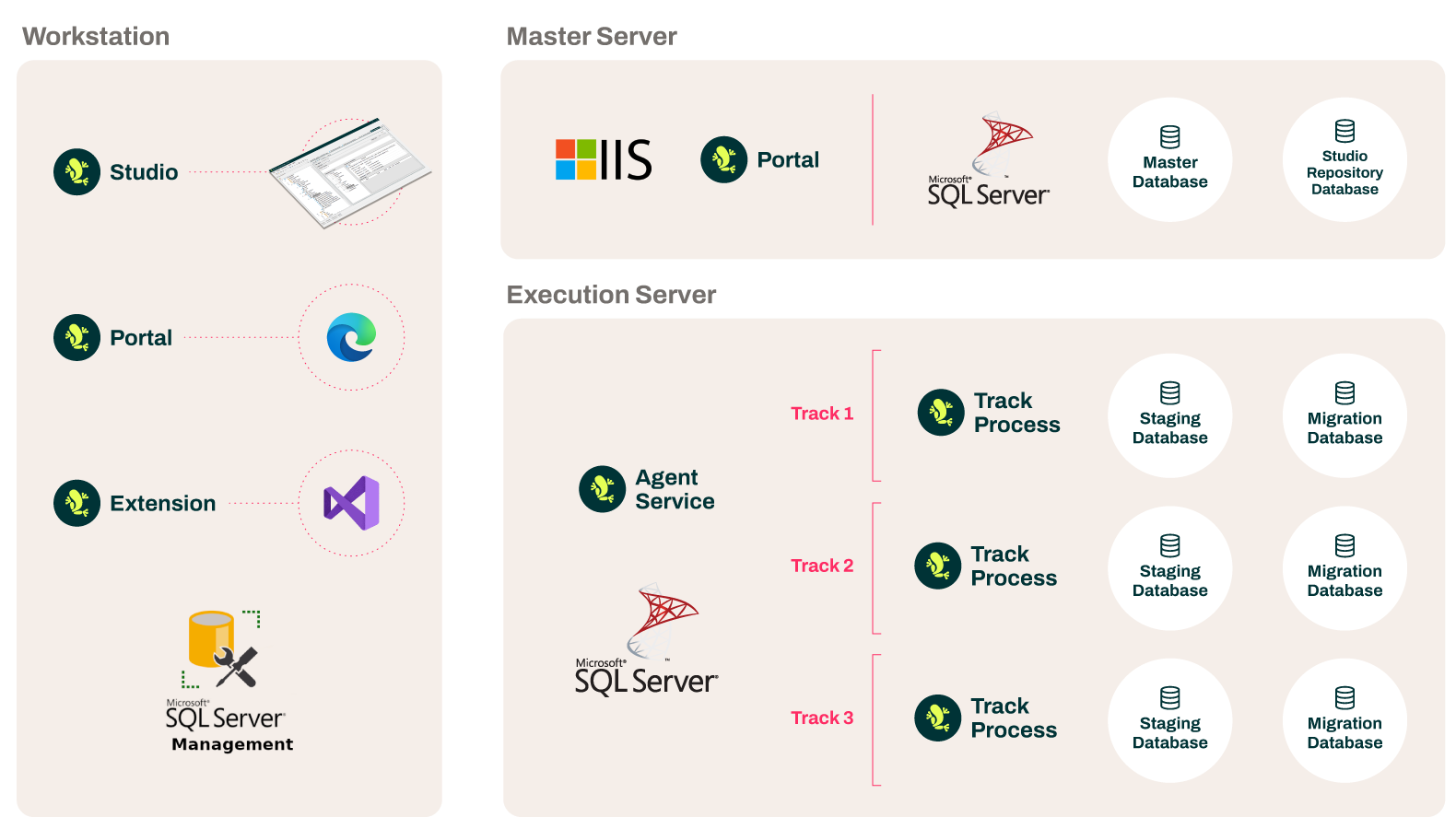
| Master Server | A single Master Server typically contains the database serving as repository for the Studio and the Runtime master database, containing housekeeping of all Execution Servers and Tracks. The Master Server also hosts the Hopp Portal as a Windows Service. The Portal can serve HTTPS directly, using a certificate from the Windows certificate store, a PFX file, or a self-signed certificate it generates itself. It can also sit behind a reverse proxy that handles HTTPS on its behalf. See Setting up the Master Server. Minimum Windows Server 2019 |
| Execution Server | One or more Execution Servers contain the Runtime libraries and Services as well as the databases and folders necessary to run migration iterations for separate migration projects in one or more Tracks. The Master Server may act as an Execution Server as well in a single server set-up. Minimum Windows Server 2019 |
| Workstation | Users directly working on the migration project have a Workstation with these local installations:
Minimum Windows 10 |
| Business PC/Tablet | Users working outside the migration project, typically involved in testing and quality assurance, only need a web browser to access the Hopp Portal to view migration events and results and collaborate on them. |
Single Server setup
It is common and indeed advisable to start out in a simpler, single server setup. In this setup a single server acts as both Master Server and Execution Server.
Team members and Business users have the Hopp client components installed on their own machines and use the Hopp client components (mainly Studio) locally.
- The local instance of Studio will communicate with the Repository database on the Master Server via an SQL connection
Single Machine Setup
An even simpler setup is to install all Hopp on one, single machine. Users will then have to connect to this machine using a remote desktop connection and run the Workstation components on the machine itself.
A single machine setup is especially useful in a Proof-of-Concept installation.
Preconditions
| Accounts | A service account for the Hopp Portal and the Hopp Runtime Agent services (one shared account, or one each), and an installing account to install and upgrade Hopp with. See Accounts. |
| Certificates | A TLS certificate for the HTTPS binding on the Portal. You have three options, picked on the configuration wizard's HTTPS & Reverse Proxy page:
When a reverse proxy in front of the Portal handles HTTPS, the Portal does not need its own certificate. The proxy manages the secure connection and forwards plain HTTP to the Portal. |
| Network | The Master Server must open the necessary ports for
The Execution Server must open the necessary ports for
|
| Disk | Both the Master Server and the Execution Server should have a D: drive dedicated to Hopp.
|
Accounts
Hopp uses two kinds of account: service accounts, which the Hopp services run as, and the installing account, which you install and upgrade Hopp with.
Studio and Hopp Utility users are neither: they connect to SQL Server as themselves, with their Windows account or a SQL login of their own, so each needs access to the databases they work with, for instance the Repository database for Studio. The database scripts grant only the service accounts, so make these grants by hand.
Service accounts
The Hopp Portal and the Hopp Runtime Agent each run as a Windows service, under a service account. One account can run both
services, and that is the setup this guide's examples use, with the account DOMAIN\svc-hopp. If your policy wants each service to
have only the rights it needs, create one account per service instead; wherever an example passes the same account twice, as
-RuntimeAgentUser and -PortalUser, pass each service's own account.
In a single server setup, a service account can be a local account on the server. In a multi-server setup, it must be an Active Directory account. It can be a Managed Service Account (MSA) to avoid password handling.
What each service needs, and who grants it:
| Runtime Agent account | Portal account | |
|---|---|---|
| The Runtime folder on each server the Runtime Agent runs on | full control, granted by you | none |
| The Portal's file storage folder (see below) | full access, granted by you unless it shares the Portal's account on the default folder | full access, granted by the Portal installer on the default folder and by you on any other |
| Master, Repository, Utility, Project and Migration databases | db_owner, granted by the database scripts | db_owner, granted by the database scripts |
| Each Staging database | db_owner, granted by you (the Runtime Agent creates and loads its tables) | db_datareader, granted by you (the Portal only reads its data) |
| Portal, Item Manager and Test databases | none | db_owner, granted by you |
The database scripts grant db_owner to the accounts you pass as -RuntimeAgentUser and -PortalUser. With one shared account,
each grant you make by hand is made once, to that account, and on a Staging database that grant is db_owner, since the Runtime
Agent needs it.
The table assumes the services connect to SQL Server with Windows authentication, each as its own service account. With SQL Server
authentication, the connection string template Hopp keeps in the Master database carries one login, so the Portal and the Runtime
Agent connect as that login on every Project, Migration and Staging database, and the Runtime Agent reaches the Master database
with the Portal's login. A separate Portal account, and db_datareader on Staging, needs Windows accounts; with SQL logins, give
the one login db_owner on each Staging database.
The Portal and the Runtime Agent exchange files through the Portal's file storage folder, set on the configuration wizard's Storage
page. The default, %ProgramData%\HoppTech\Portal\Storage on the Master Server, works only when every Runtime Agent runs on the
Master Server; the Portal installer gives the Portal account access to it, a Runtime Agent sharing that account needs nothing
more, and a Runtime Agent under its own account needs full access granted by you.
When Execution Servers are separate machines, set a network share (UNC path) instead. On any other folder, whether local or a
network share, grant the Portal account and every Runtime Agent account full access to it yourself, before you finish the wizard.
Granting db_owner by hand
Make each grant from SQL Server Management Studio, connected as the installing account, by running these two statements in the database the grant is for:
CREATE USER [DOMAIN\svc-hopp] FOR LOGIN [DOMAIN\svc-hopp];ALTER ROLE db_owner ADD MEMBER [DOMAIN\svc-hopp];
If the user already exists in that database, run only the second statement. For a separate Portal account on a Staging database,
use db_datareader instead of db_owner in the second statement.
The login must exist on that SQL Server first. The database scripts create a Windows account's login when they first run on a
server with that account as -RuntimeAgentUser or -PortalUser, so make these grants after that run (on an Execution Server, after
its Utility database is set up). Use the same statements with each service's own account when the services have separate accounts.
The installing account
The account you install and upgrade Hopp with, for instance your own account or a DBA's, is not a service account. It runs the installers, so it must be a local administrator on the server. It runs the database scripts and creates the databases, so on SQL Server it needs the rights listed under Permissions; sysadmin is the simplest.
Pre-installation check list
These precondition activities typically take a bit of time and can be initiated prior to installation:
- Provision the server or servers that will run Hopp (Windows Server 2019 or later). In a single server setup, one machine acts as both Master Server and Execution Server
- Provision a dedicated Hopp disk (a D: drive) on each server, sized for its role: at least 25 GB for a Master Server, at least 250 GB for an Execution Server
- Request the firewall ports: SQL Server 1433, HTTPS 443, and file sharing
- Create the Hopp service account (or one per service), see Accounts
- Procure and install SQL Server (a licensed instance if a larger migration needs one)
- Decide the SQL Server collation, and use the same one for all databases
- Decide on the certificate strategy for the Portal's HTTPS binding (self-signed for evaluations, certificate from store or PFX for production)
- Decide the Portal's public URL, and set up DNS for it
- If you use external authentication, register the OpenID Connect client application with your identity provider and obtain the ClientId and secret. See Setting up external authentication
Third party software
In addition to the software components of Hopp, several other, third-party software must be installed.
| Microsoft SQL Server | Install on Master and Execution Server. Express Edition is sufficient for smaller migrations. Larger migrations may benefit from a licensed instance capable of utilizing a higher number of CPUs. Minimum SQL Server 2019 |
| Microsoft SQL Server Management Studio | Install on Workstation of team members that will work on Studio Source Maps and operators in charge of maintaining Hopp |
| Visual Studio | Install on Workstation of team members that will implement manual rules. Visual Studio 2026 (version 18.0 or later), Community Edition is sufficient. Visual Studio 2022 cannot build the .NET 10 engine projects |
| .NET Runtime | The Portal installer and the Runtime Agent installer each install the matching .NET Runtime as a prerequisite, so no separate .NET install is normally required on Master or Execution Servers. Version is bound to the Hopp release; refer to the download page if you need to install the runtime out-of-band. |
SQL Server installation
SQL Server must be installed on the Master Server and the Execution Server
-
Install Windows Authentication and/or SQL Server Authentication
-
Give the installing account the rights listed under Permissions (sysadmin is the simplest)
-
The service account needs no server role. It needs
db_owneron the Hopp databases: the database scripts grant it on some, and you grant it on the others, as listed under Accounts
Separate App and Database servers
It is recommended to install SQL Server on Master- and Execution Servers. However, in some installations policies may require application servers and database servers to be separated.
If the track specific databases are not installed on the Execution Server, these additional requirements must be met:
- In a setup where multiple execution servers are connecting to one database server, the track-specific databases should be named accordingly (database name should include the name of the execution server)
Data protection and failover considerations
The Hopp installation is normally somewhat of a hybrid in comparison to the policies applied in most installations. The data being migrated certainly are in many cases sensitive and require production level data protected and access restrictions.
At the same time, the Hopp migration software is not part of the normal production setup in terms of availability, stability and failover protection.
If at all possible, it is strongly recommended to avoid production-like setups like mirroring and clustering in order to maximize the migration' throughput. In case of a complete and catastrophic failure of the database environment, the file based nature of the source data inputs to the Hopp migration software makes it a normally trivial task to re-establish the migration environment and simply run the migration again.