PowerShell Automation
What is the Hopp PowerShell Module?
Hopp delivers a PowerShell module that can be used to automate the jobs that are normally submitted manually from the Portal Operations user interface.
The Hopp PowerShell module is an automation component within the Hopp data migration platform. It allows users to interact programmatically with Hopp’s migration environment, particularly the Portal and its underlying data structures. This module is designed to streamline repetitive tasks and enable advanced automation scenarios for complex migration projects.
By far - and indeed for many years - the normal use-case has been that one or more team users (operators) access the Portal Operations and from there submit migration jobs by manually identifying Business Objects, Views, Tables, Valuesets etc and submitting job to load, export, import and so on.
While this will certainly always be the case, there are some essential benefits brought to the table by the PowerShell Automation module:
| Orchestration | 3rd party orchestration software like Octopus Deploy, Control-M, Automic, Tivoli and others can use the Automation module to submit the migration jobs as part of a larger flow that includes both predecessor and successor steps in the end-to-end migration project. |
| Interactive | In the everyday development process, developers can use PowerShell and the Automation module to script jobs together in flows that can execute unattended - avoiding the need to monitor the job list to launch jobs in the flow as predecessor jobs complete |
The Hopp Automation module consists of a series of PowerShell cmdlets to list items like Business Objects, Valuesets, Views Tables etc. Other cmdlets create parameterized jobs that are ready to be submitted. Parameterized jobs can then be submitted, and finally, a cmdlet can wait for submitted jobs to finish.
Especially of interest for the interactive use-case, the user can create a schedule to combine sets of ready-to-submit, parameterized jobs. A schedule can then be submitted as one unit and if the schedule terminates due to a faulted/cancelled job it can be restarted to resume execution from the point of failure.
Core Functionality
The module is a set of cmdlets grouped by task. Every cmdlet supports Get-Help for its parameters and examples.
Connecting:
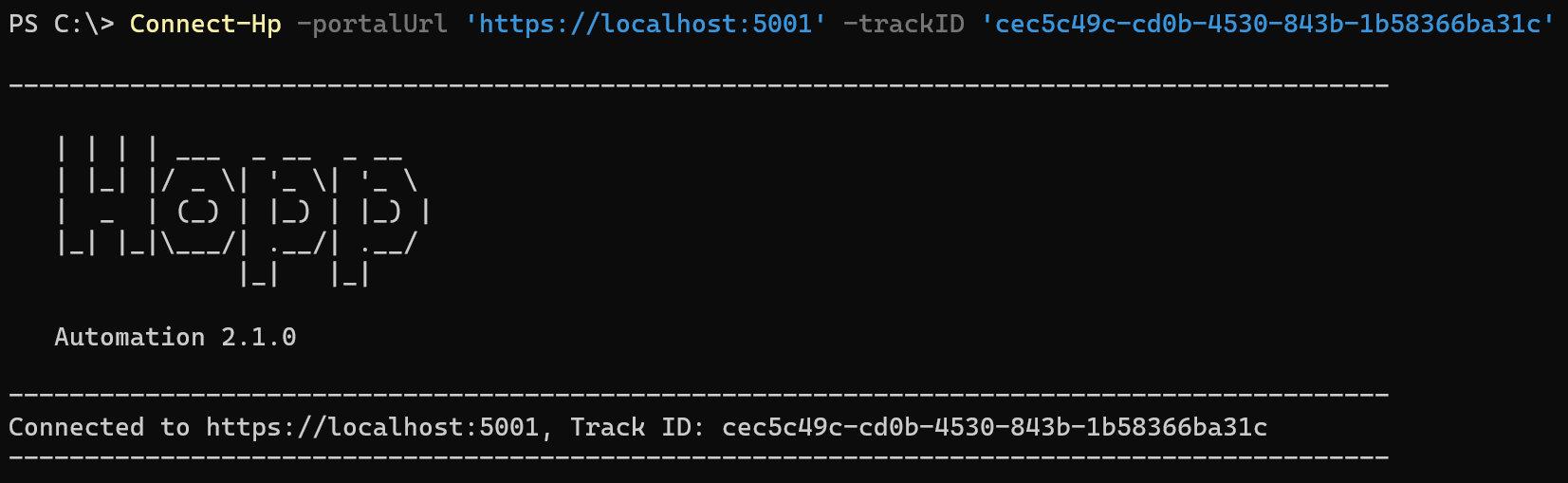
Connect-Hpsigns in to the Portal and connects the session to a track. You can sign in interactively through a browser, or supply aClientIdandClientSecretfor an unattended server-to-server sign in from an orchestration tool. Once connected, the other cmdlets act on that track.Disconnect-Hpends the session.
Listing migration content:
Get-HpEntityList,Get-HpValuesetList,Get-HpSourceTableListandGet-HpSourceViewListretrieve the Business Objects, Valuesets, tables and views defined for the track.
Building jobs:
- The
New-Hp...Jobcmdlets create parameterized jobs that are ready to submit. They cover load, export, import, setup, unload, publish and reset operations.
Scheduling:
New-HpBatchgroups ready-to-submit jobs into a batch, and a schedule is a list of batches. A batch is not a job: it runs as part of a schedule throughSubmit-HpScheduleand cannot be passed toSubmit-HpJob.New-HpExportScheduleandNew-HpImportSchedulecombine ready-to-submit jobs into a schedule. A schedule runs as one unit, and if it stops because a job faults or is cancelled it can be restarted to resume from the point of failure.
Submitting and monitoring:
Submit-HpJobandSubmit-HpSchedulesubmit the prepared work.Wait-HpJobandWait-HpSingleJobwait for submitted work to finish, so a script can run a flow unattended.
Running tracks:
Start-HpTrack,Stop-HpTrackandGet-HpIsTrackRunningstart, stop and check the run state of a track.
Parameters and baselines:
Get-HpParameterValue,Set-HpParameterValue,Get-HpExtensionParameterValueandSet-HpExtensionParameterValueread and set parameter values.Set-HpBaselineValuesets,Set-HpBaselineViewsandSet-HpBaselineDataset baseline data for the track.
Event data:
Get-HpEventListretrieves a list of migration events from the Portal.Get-HpEventItemsDownloaddownloads detailed event data, including placeholders and values, into Excel or ZIP format for analysis. This supports installations where the Portal user interface is not fully utilized, so stakeholders can access detailed migration insights programmatically.
Deploying engines
The module can build and deploy migration engines to the Hopp Runtime, so engine deployment can run as a step in an automated pipeline alongside the migration jobs.
Two cmdlets cover this:
Deploy-HpEnginedeploys an engine from its project folder. By default it builds the engine project first, then deploys the result and returns the revision ID of the newly deployed revision. To deploy an output that is already built, supply theBuildFolderparameter to skip the build (for instance when the build output must be scanned before deployment). An optionalLabelidentifies the revision. When the cmdlet builds the engine itself, it outputs the build messages before the revision ID, so take the last output value as the sample below does.Set-HpTrackEngineRevisionactivates an engine revision on a track. Set theEnginetoSourceorTarget. IfTrackIDis omitted, the track fromConnect-Hpis used. IfRevisionIDis omitted, the newest deployed revision is activated.
A typical unattended deployment connects, deploys the engine, and activates the new revision on the track:
Connect-Hp -portalUrl "https://portal.url" -trackID "12345678-1234-1234-1234-123456789012" -clientId "(client id)" -clientSecret "(client secret)"

$revisionId = Deploy-HpEngine "(path to engine project folder)" | Select-Object -Last 1

Set-HpTrackEngineRevision -Engine Source -RevisionID $revisionId
The project folder passed to Deploy-HpEngine must contain the engine's MigFx.manifest, the published XML file the manifest refers to, and
its .csproj file. The build output can be in a different folder, given in BuildFolder. When the engine is built in a separate pipeline
step, make sure the deployment step has both the project folder with these files and the build output. When the cmdlet builds the engine itself
(no BuildFolder), the .NET SDK build tools must be available on the machine that runs the deployment.
Why Use It?
-
Efficiency: Reduces manual effort by automating jobs, engine deployment and reporting.
-
Flexibility: Supports custom scripts for advanced migration scenarios.
-
Transparency: Provides detailed event-level data for auditing and troubleshooting.